
- The opening line. The very first thing it says when someone picks up.
- The instructions. The brief that guides everything after that.
The opening line
The opening is generated from the script’s opening step. Put specific opening words there. There is no separate fixed-opening setting. This is the first sentence out of the agent’s mouth. It sets the tone for the whole call, so keep it short, human, and honest about who’s calling.- Good: “Hi, this is Sarah from Coleman Roofing, do you have a quick minute?”
- Not so good: “Hello, this is an automated call regarding your recent inquiry submission.”
Who speaks first
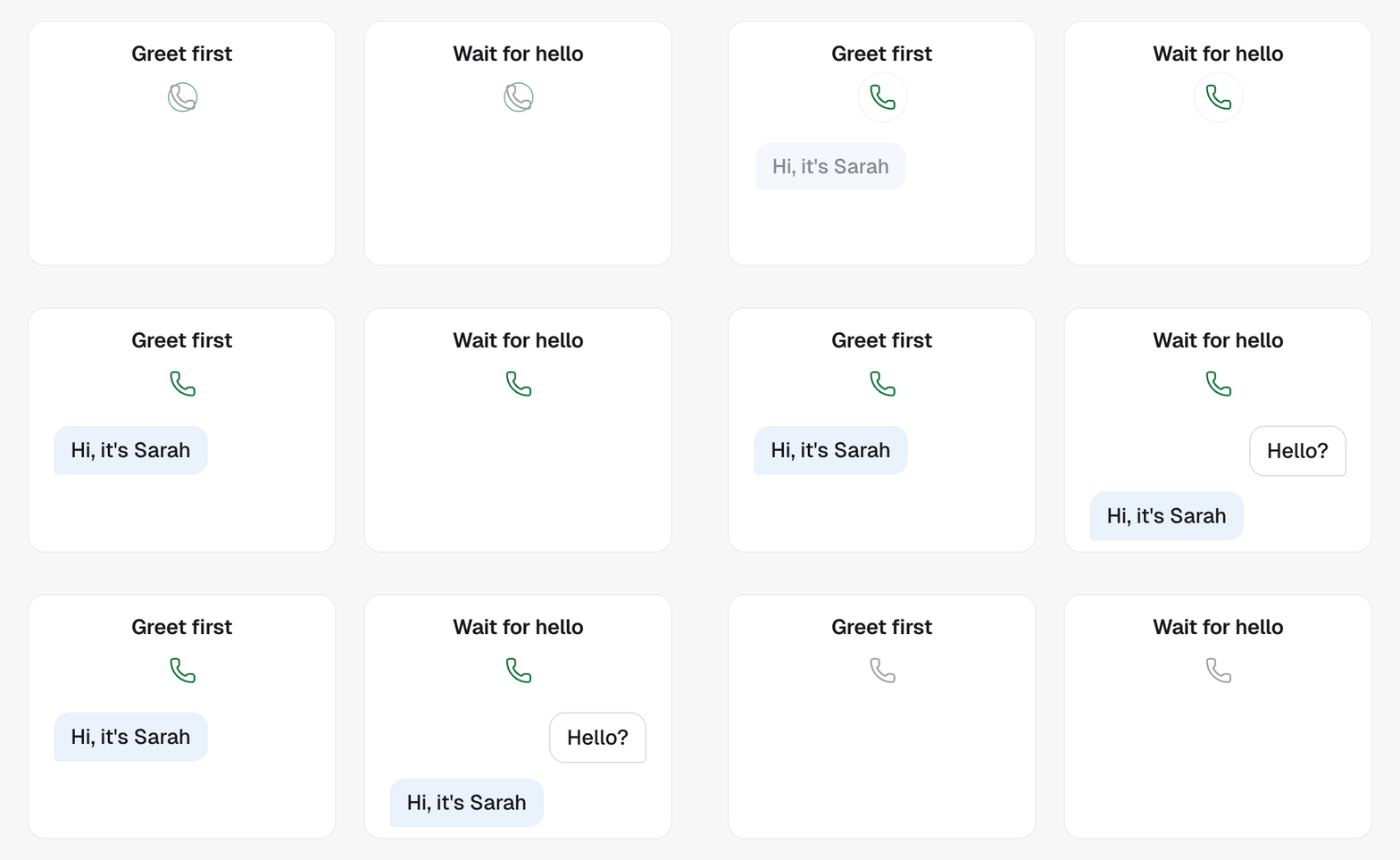
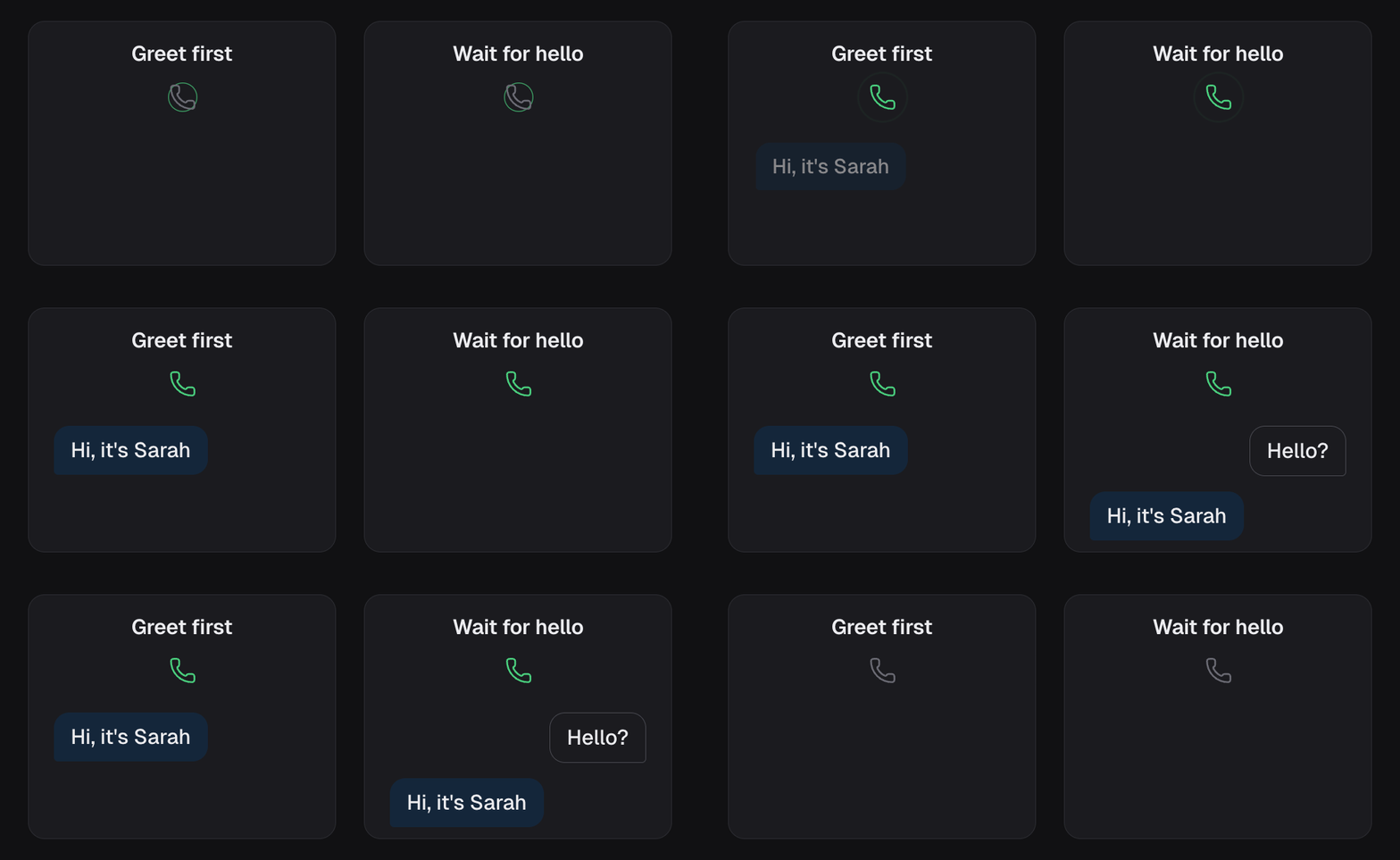
Open the agent’s Settings tab and the How calls start card. Two choices:- Greet first. The agent speaks the moment the line opens. The usual choice for a call the agent places.
- Wait for hello. The agent stays quiet until the person speaks, the way a human answers a ringing phone. The usual choice for a call the agent answers. If the person stays quiet, the agent speaks after the number of seconds you set, so nobody is left listening to silence. The dashboard allows one to fifteen seconds. An agent set up before this setting existed may have no limit at all; the card says so, and choosing a number fixes it.
The instructions
The instructions are the agent’s brief. This is where you tell it who it is, why it’s calling, and how to handle the conversation. Think of it as onboarding a new hire, not writing a movie script. A good brief usually covers:- Who the agent is. Its name, your company, its role.
- Why it’s calling. The reason, in one plain sentence.
- The goal. The one thing you want out of the call.
- What to do when. “If they’re interested, do this. If they’re busy, do that.”
- The hard rules. Things it must never do or say.
Editing an existing script
You can ask the builder chatbot to change a sentence, a step, the opening, or the whole script. Name the part you want changed and the result you want. For example: “In the opening, replace ‘Do you have a minute?’ with ‘Is now a good time?’ and keep the rest as it is.” The edit should follow this process:- Read the current script. Start from the latest available script, including edits already made in this conversation. Earlier chat messages are not a reliable copy of the current script.
- Identify the requested scope. A sentence change belongs in that sentence; a request about one step belongs in that step. If the target could mean two different passages, resolve that ambiguity before changing either.
- Preserve everything outside that scope. Keep unrelated wording, CRM variables, questions and rules. Replacing the whole script is appropriate when you ask for a broad rewrite.
- Apply the change to the current text. If the passage has changed since it was read, read it again and use the new version. Do not rebuild missing text from memory or force an old edit onto a newer script.
- Check the result. Confirm the intended wording changed and surrounding content was preserved. The chatbot should report an edit as saved only when saving succeeded; a staged edit or failed save must be described as such.
Write for the ear, not the eye
The agent’s words are spoken, not read. So write the way people talk.- Do say “January fifteenth.” Don’t write “1/15.”
- Do say “call us at four one five…” Don’t paste a raw link or a symbol the agent would have to read out awkwardly.
- Do keep sentences short. Long sentences sound out of breath.
- Do let it use small natural words (“sure,” “no worries”) so it sounds real.
Pull the person’s details into the prompt
Start with Variables and context to check the source, availability and missing-value behavior of a supported variable. Your instructions can include blanks that fill themselves in for each call. On a GoHighLevel sub-account you map each blank to a custom field on the contact (their name, their details) or a custom value on the location (your business name, the transfer number). On a sub-account that keeps its contacts here, you define your own fields and read them by key, for example{{budget}}; see Contacts without a CRM.
The agent then speaks the real value from that person’s record, not a
placeholder.
Map the first name field and the agent greets each person by their actual name.
It’s like a mail merge, except the data comes live from the contact record on
every call.
In the API
Everything on this page lives on the agent underconfig.llm:
generalPromptis the instructions.beginMessagecan appear on reads of older agents. It is not writable: the opening is generated from the script’s opening step.startingSpeakeris who speaks first:agentgreets first,userwaits for the person.beginAfterUserSilenceMsis how long a waiting agent gives the person before it speaks first, in milliseconds, from1000to15000. It only applies whenstartingSpeakerisuser, and a waiting agent always has one: switch touserwithout sending it and the agent gets3000.
hasCustomPrompt on
the agent tells you whether it has been given a prompt of its own or still
carries the one it was created with.
The blanks that fill themselves in are GoHighLevel custom fields and custom
values. Their fieldKey values, such as contact.first_name, are listed by
GoHighLevel resources.
Not sure which of two openers is better? Run a split test
and let the leads decide.
Starting from nothing? Your first script builds a draft
from a few details about your leads and the conversation you want.