
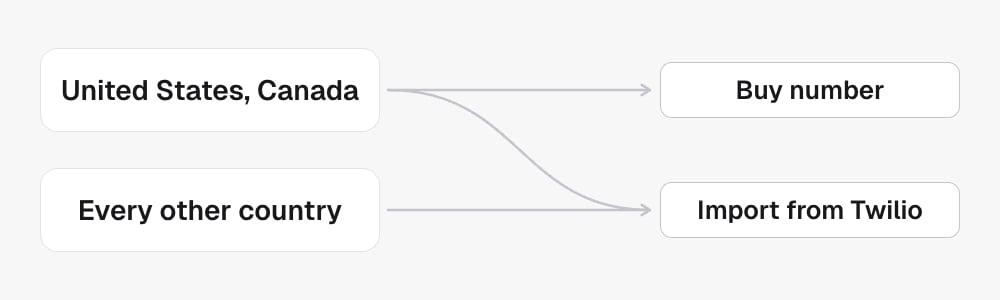
What you need
- A Twilio account with at least one voice-capable number.
- Your Twilio Account SID.
- A Twilio API key set to the Standard key type, and its Secret.
Step 1. Get your Twilio credentials
1
Copy your Account SID
Sign in to the Twilio Console. Your Account SID
is the value that starts with 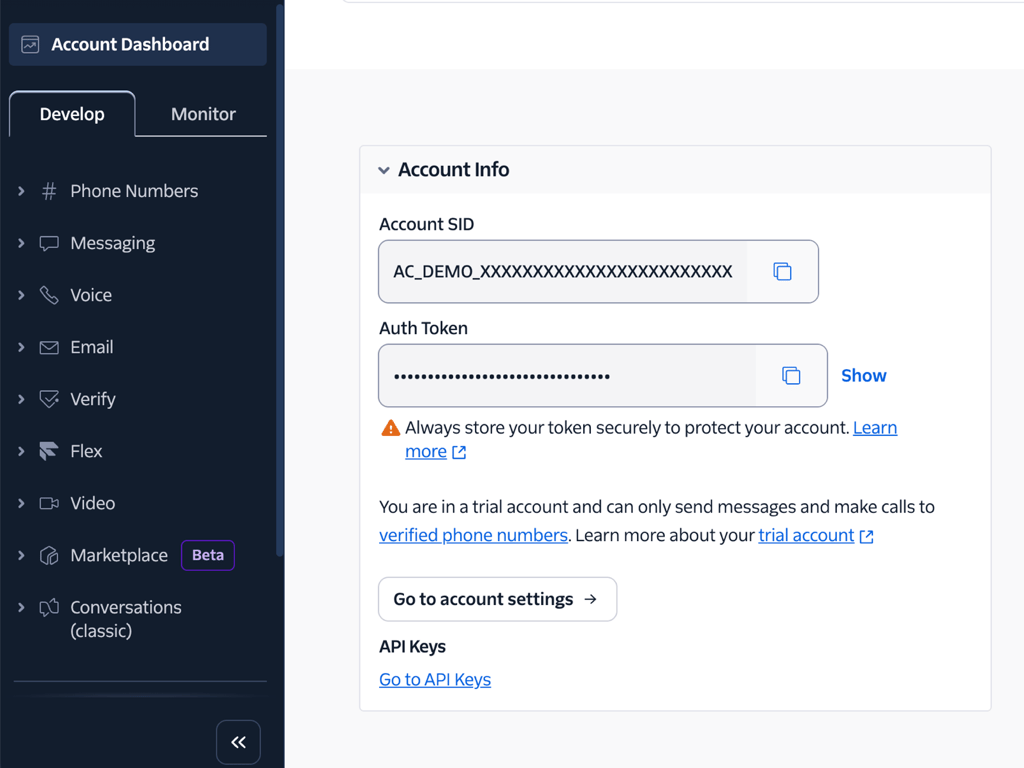
AC, shown under Account Info on the Console
home page. You can also copy it from the Console URL when it is visible
there. If you use subaccounts, make sure it is the same account where you
create the API key below.2
Create a Standard API key
Open API keys & auth tokens,
which the Console lists under Settings, then Account settings. Click Create
API key, give it a name you will recognise, set the Key type to
Standard, and click Create.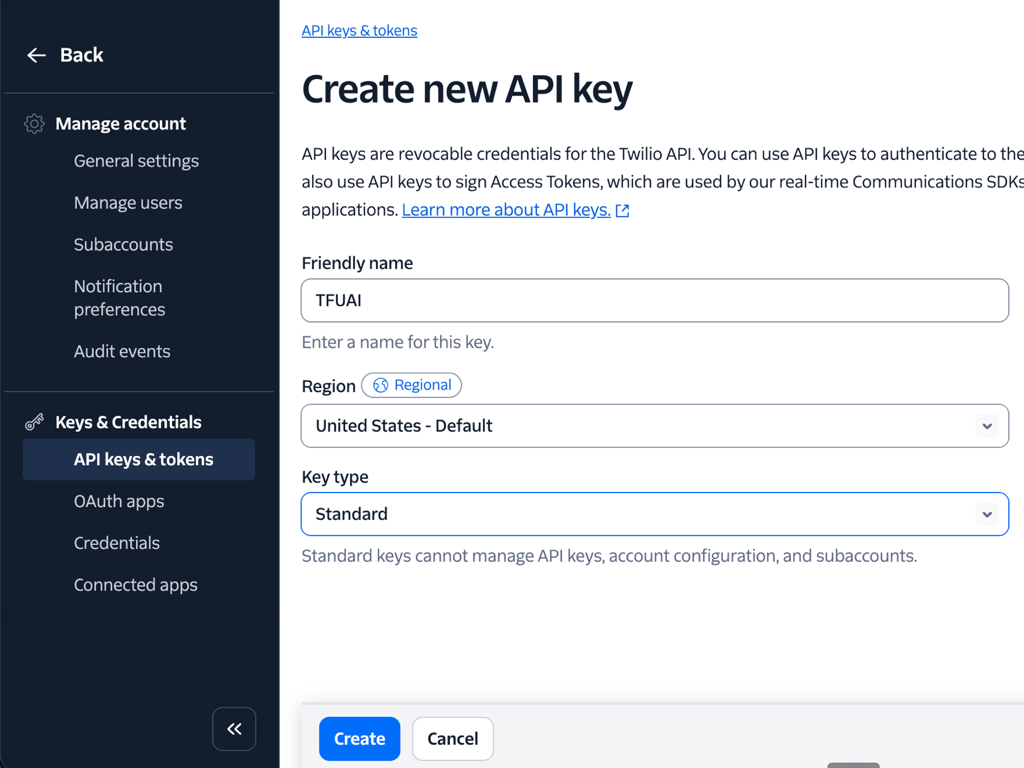
3
Save the SID and Secret
On that same API keys page
Twilio shows the API Key SID (it starts with 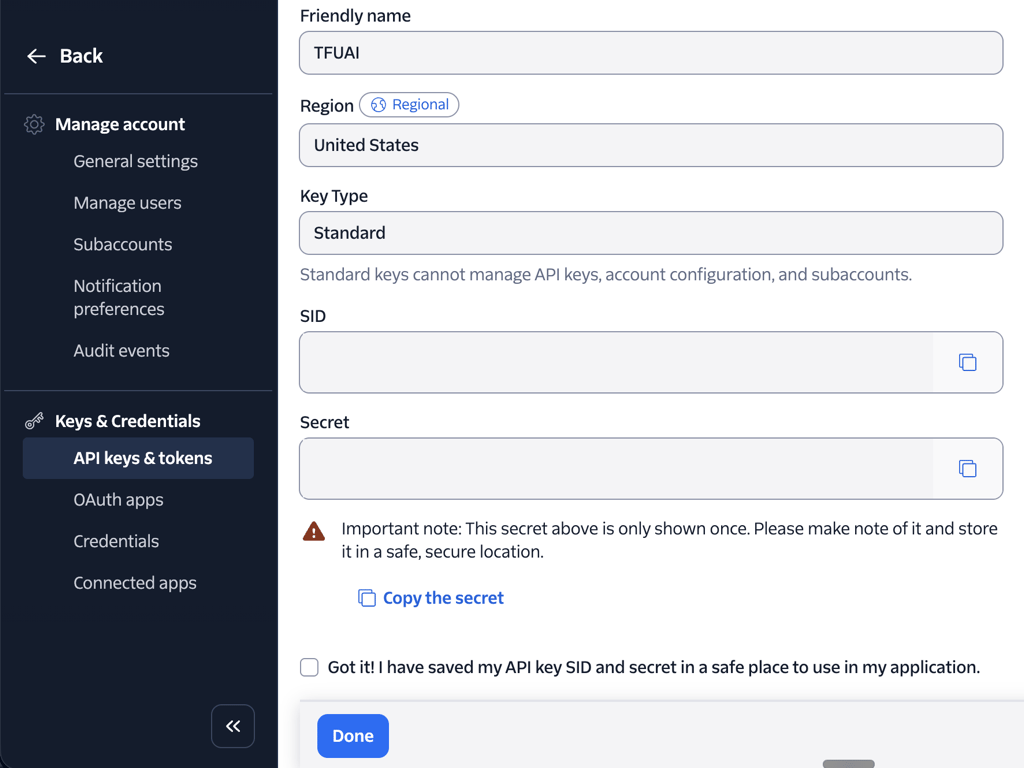
SK) and the Secret. Copy both
now. The Secret is shown only once, so save it before you leave the page.Prefer not to make an API key? You can use your Account SID and Auth token
instead. An API key is the safer choice, since you can revoke it later without
rotating your account.
Step 2. Connect Twilio in the app
1
Open the connect dialog
Go to Phone Numbers, then click
Connect Twilio.
2
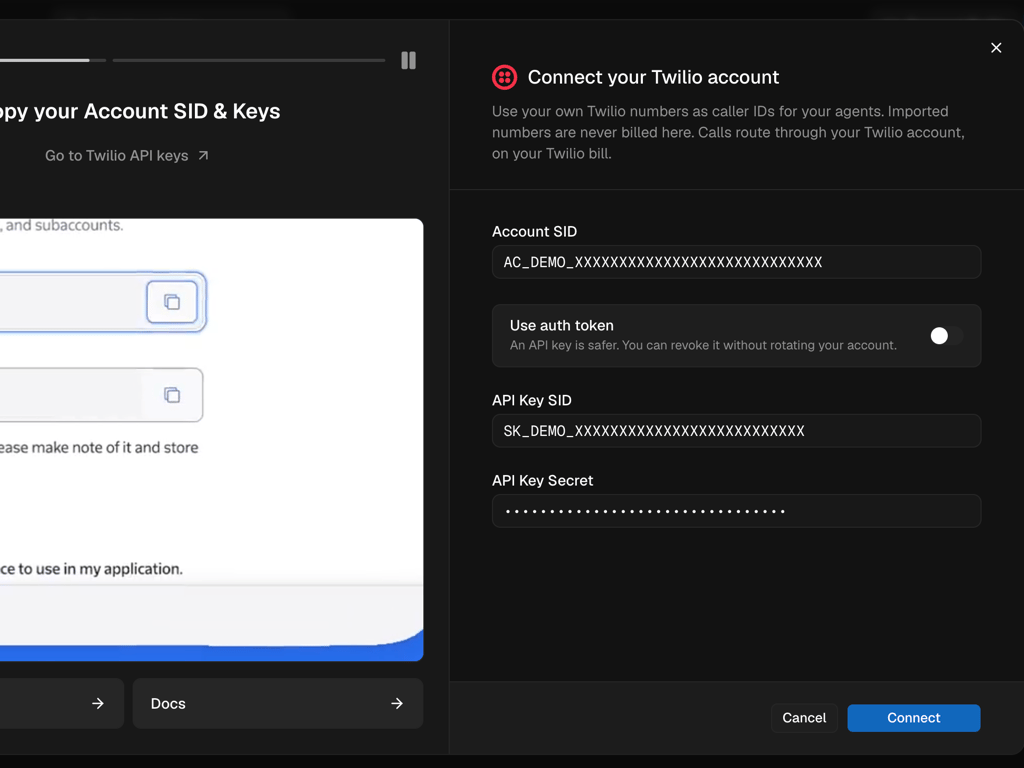
Enter your credentials
In that dialog on Phone Numbers,
paste your Account SID, then the API Key SID and Secret. Leave Use auth token
off unless you chose the auth token route above.
3
Connect
Click Connect. We check the credentials with Twilio before saving
anything. Once connected, the button becomes Import from Twilio. If
Twilio can’t be reached later, it shows Reconnect Twilio.
Step 3. Import a number
1
Open the import dialog
On Phone Numbers, click
Import from Twilio.
2
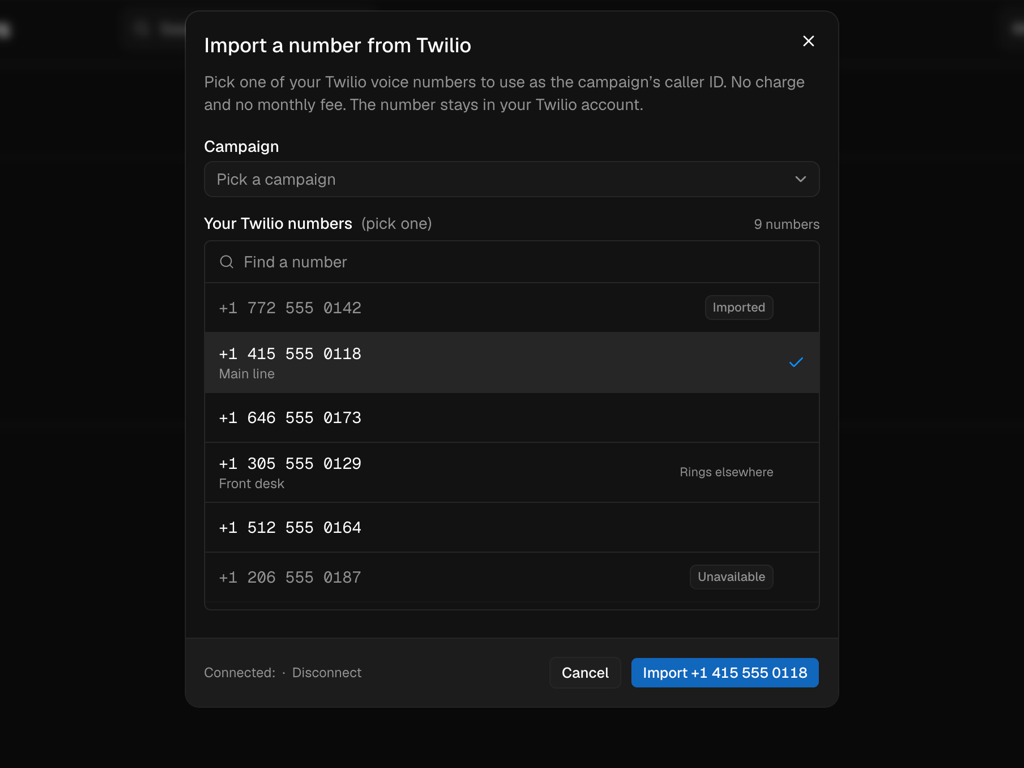
Pick a campaign and a number
In the same dialog on
Phone Numbers, choose the
campaign the number should call from, then pick one of your Twilio voice
numbers. We list them for you, so there is nothing to look up in Twilio here.
Rows marked Imported, Unavailable (another account uses it) or No
voice can’t be picked. Rings elsewhere can: the number already sends
its calls somewhere in your Twilio, and importing points them here instead.
3
Import
Click Import number. There is no charge and no monthly fee. The number stays in your
Twilio account and is ready to make and take calls right away. You will see
it listed on Phone Numbers.
Good to know
- We never buy or release your numbers. They stay yours.
- Removing a number here restores its previous Twilio voice settings and leaves it in your account.
- Your imported numbers work for both outbound and inbound calls.
New to caller IDs? See The phone number people see
for why the number you call from matters.
In the API
Once Twilio is connected in the dashboard, your numbers can be attached from the API too.- Assign phone number
takes the number in E.164 in its path and the
campaignIdto put it on. - In the pool an imported
number reads
source: customer-twilioandmonthlyChargeUSD: 0. - Release phone number on an imported number removes it from the pool and restores its Twilio voice settings. It is never released from your Twilio account.