
Before you start
- You are an agency admin.
- Your agency is on the Business plan, or is a managed agency. On other plans, the Rebilling tab offers an upgrade.
- You have a Stripe account, or you can create one during Step 2.
- The client’s sub-account is connected, so it shows in your list.
- You have your client’s card details, or a Stripe customer you already made for them.
Step 1: Open the Rebilling tab
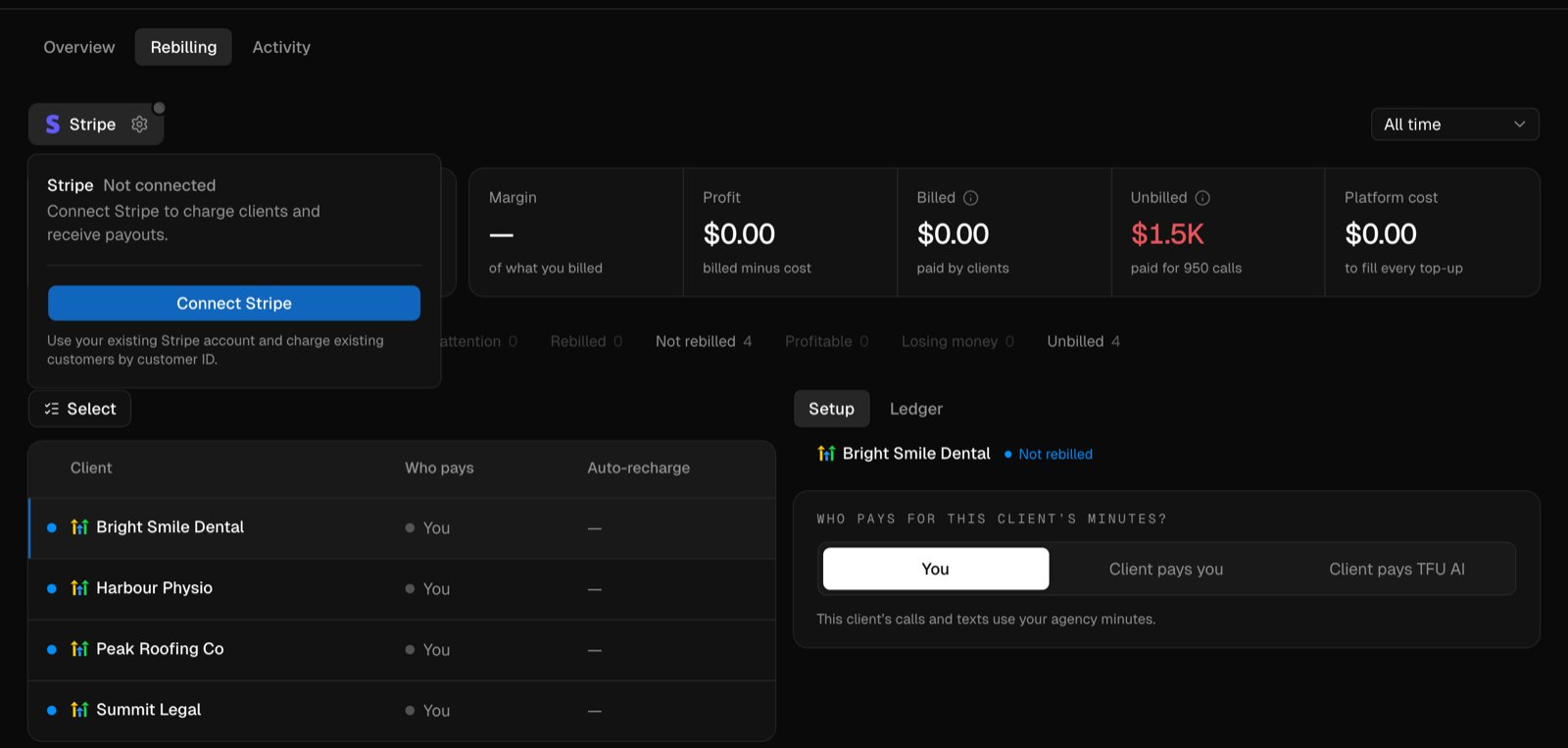
Go to Billing and click the Rebilling tab. It lists every client sub-account and who pays for its minutes.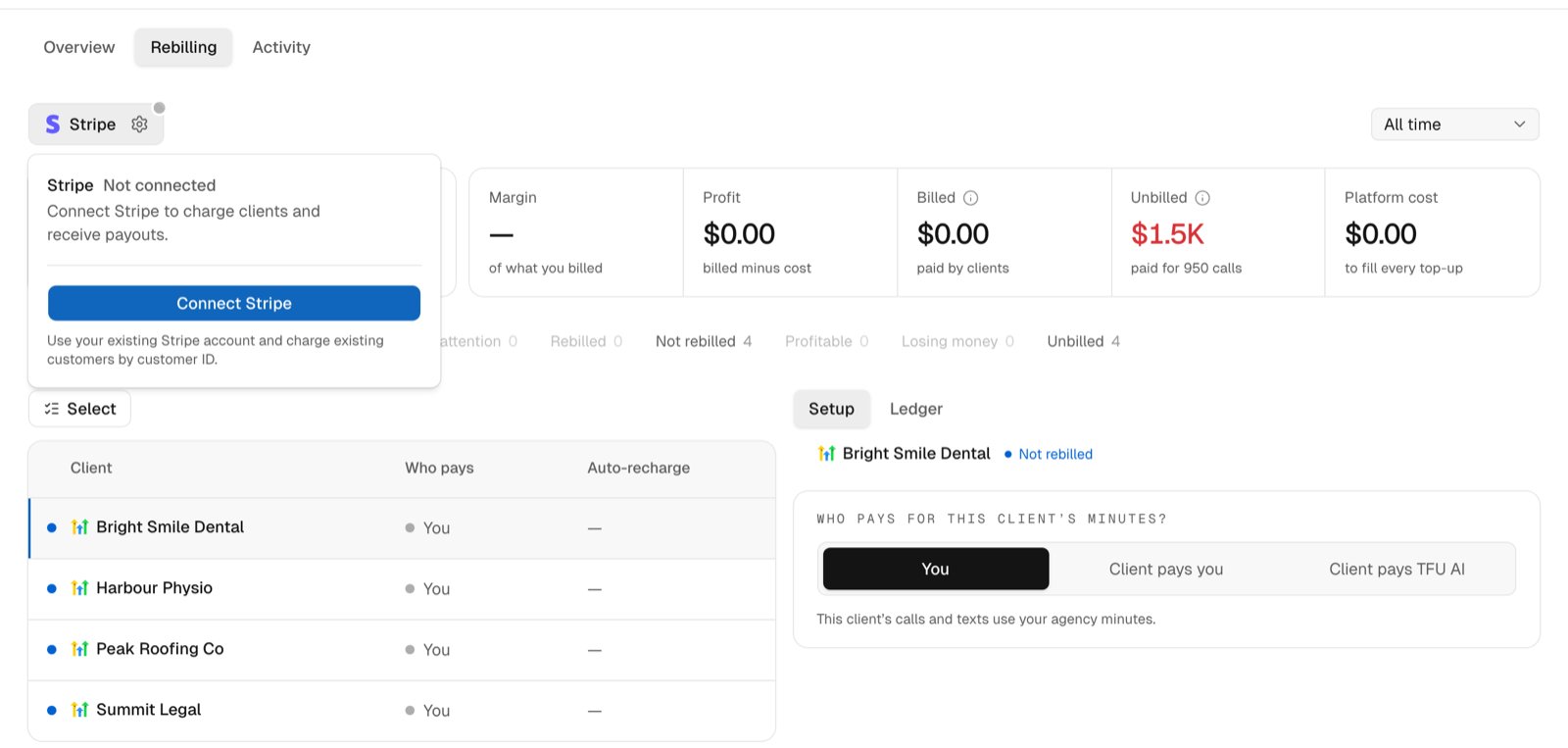
Step 2: Connect Stripe
You connect Stripe once for your agency. Every client you rebill then pays into that Stripe account.1
Open the Stripe panel
At the top of the Rebilling tab, click Stripe.
2
Connect your account
Click Connect Stripe. Stripe opens in a new browser tab. Sign in and
pick the account to link, or create a new one.
3
Come back to the app
When you finish on Stripe, the app shows Stripe account connected. The
Stripe panel shows Connected, with Charges and Payouts both
Enabled.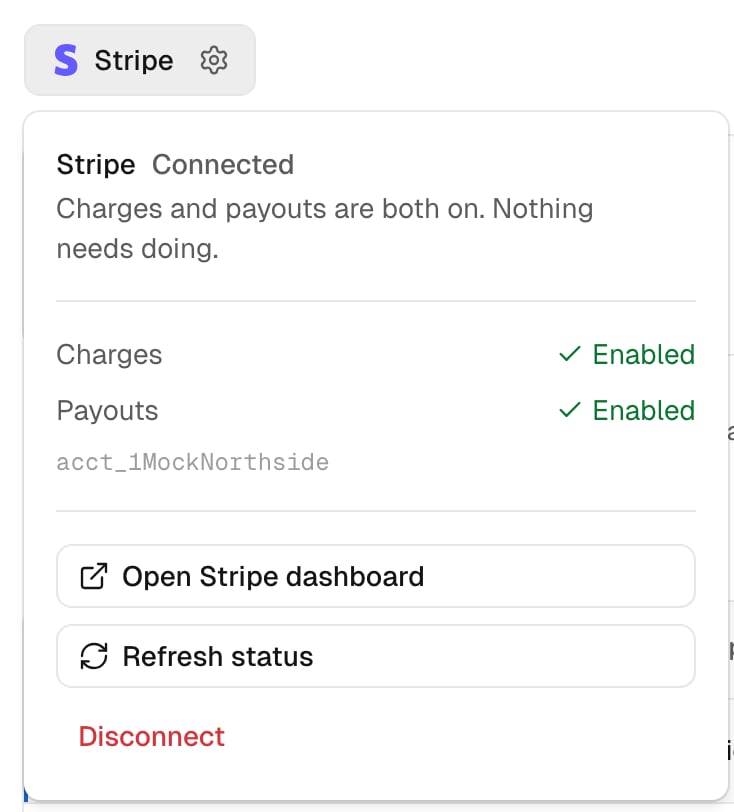
Step 3: Choose Client pays you
1
Open the client
In the list on the Rebilling tab, click the client.
2
Choose who pays
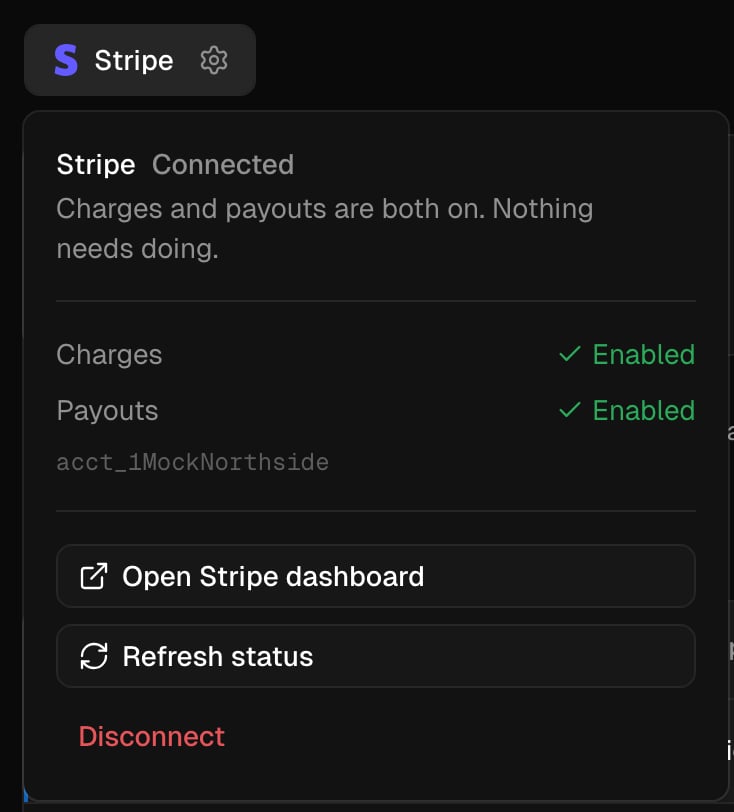
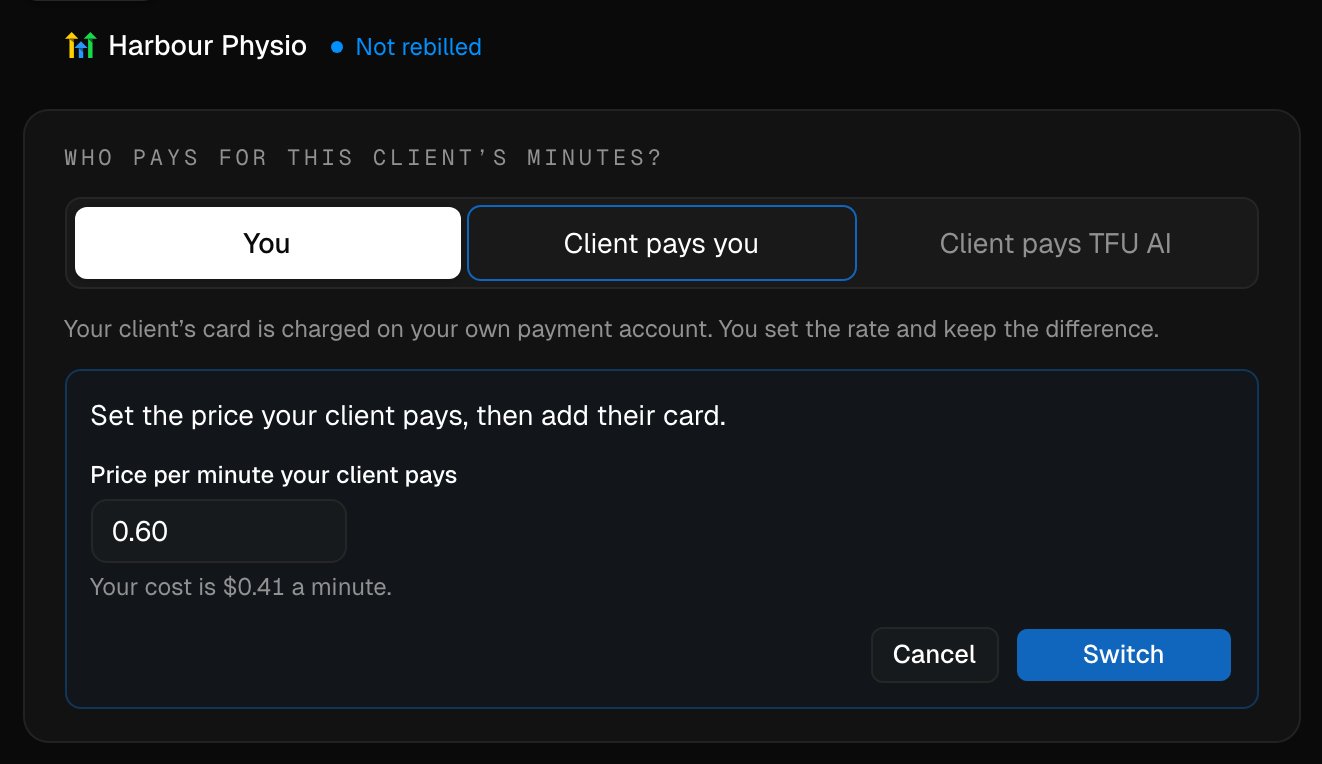
Under Who pays for this client’s minutes?, click Client pays you.
3
Set your price
In Price per minute your client pays, enter your price. It starts at
1.5 times your cost, and your cost per minute shows under the box.
4
Switch
Click Switch.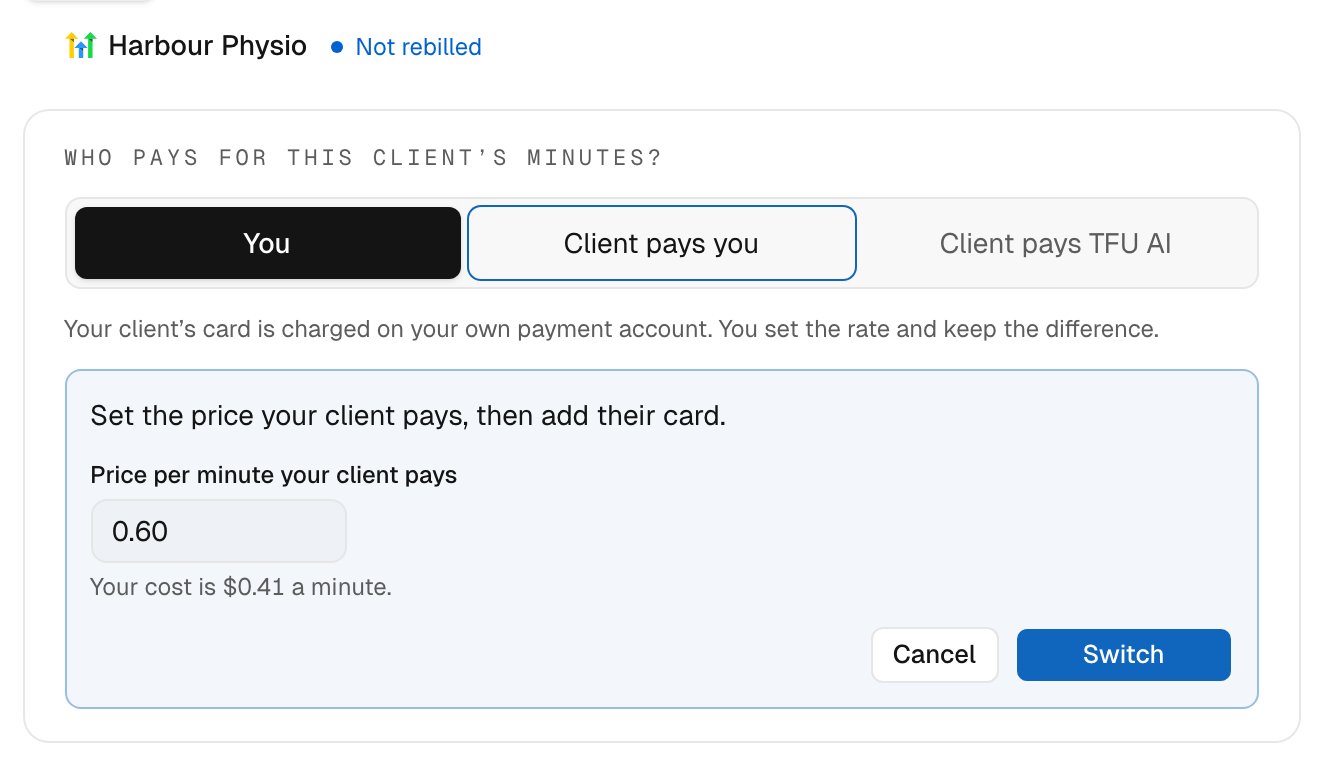
Client pays you needs Stripe to be connected first. If it is not, the app
asks you to connect it.
Step 4: Check your client rate
The client now shows Balance, Client rate and You earn. To change the price, click the rate or the pencil next to it.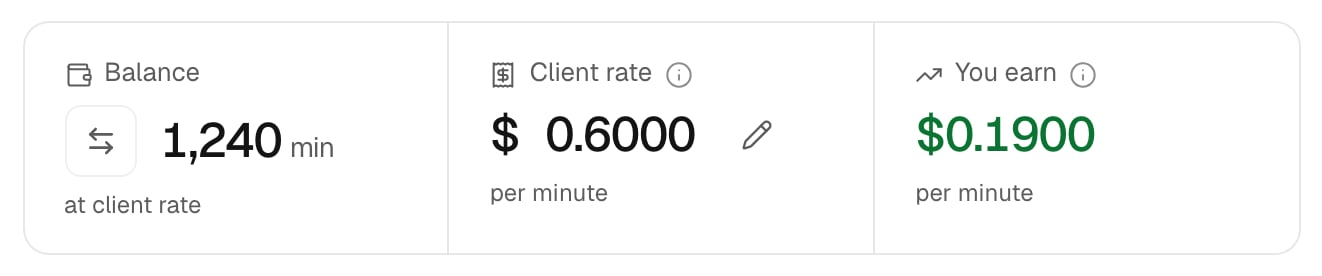

Step 5: Add your client’s card
1
Start adding a card
Under Payment methods, click Add card.
2
Choose where the card is saved
If the client has no Stripe customer yet, the app asks Where should
this card be saved?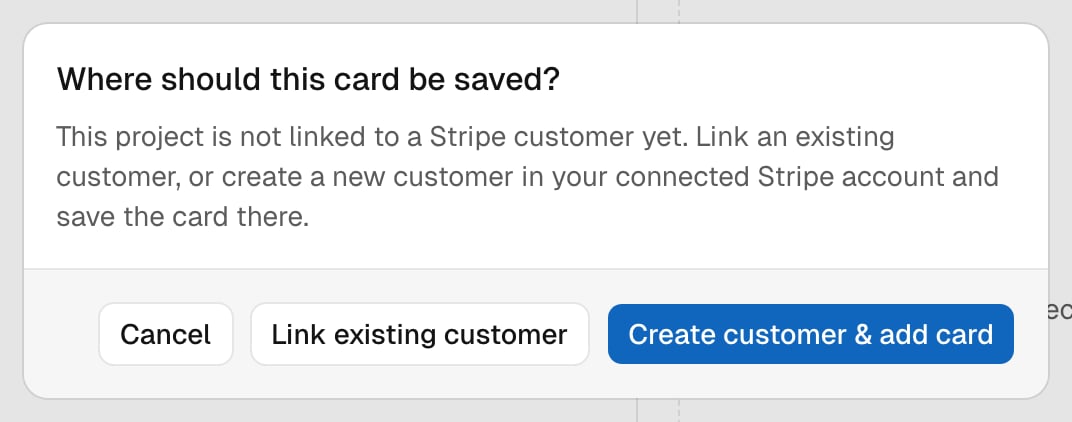
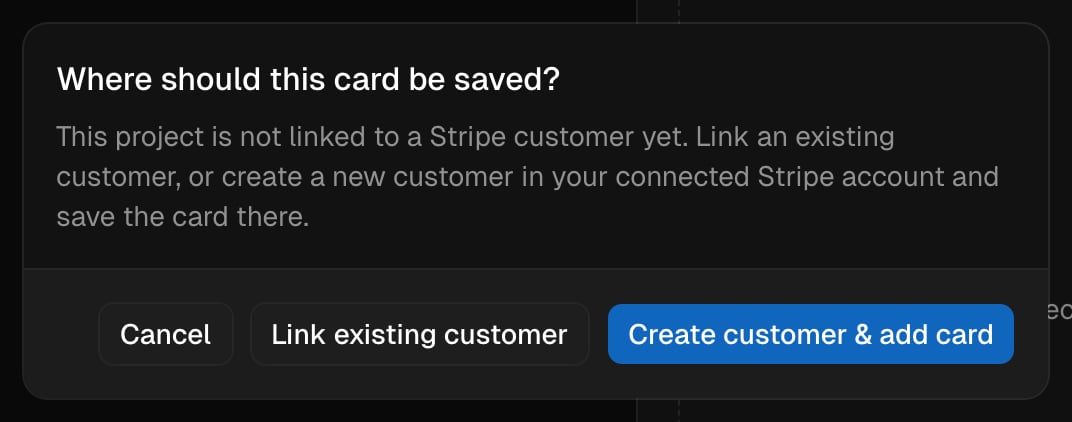
- Create customer & add card makes a new customer for this client in your Stripe account.
- Link existing customer uses a customer you already have in Stripe. Pick the customer and the card to use.
3
Enter the card
Enter your client’s card details and save. The card shows under
Payment methods as Ready.

Step 6: Top up your client’s wallet
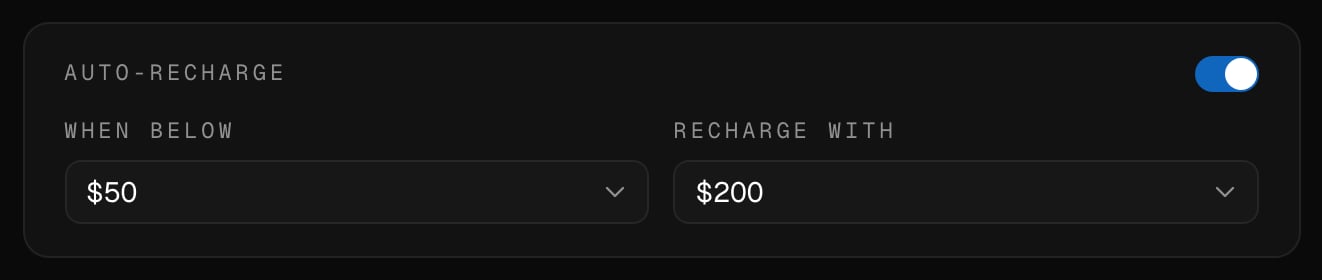
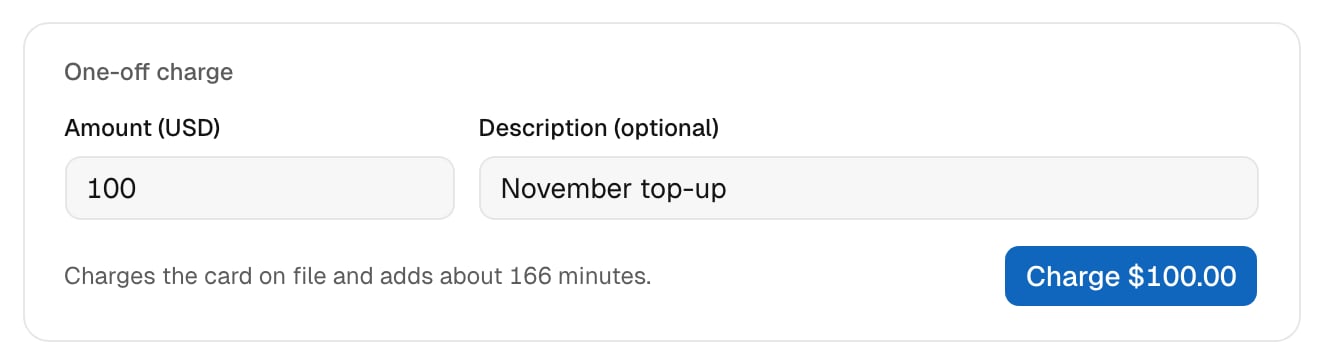
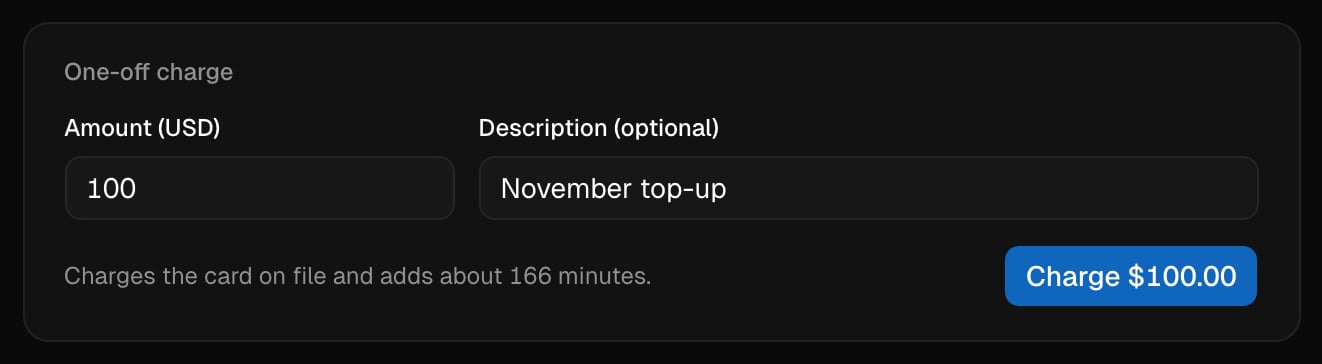
A rebilled client spends its own minutes. You can top them up automatically, by hand, or both. Auto-recharge charges the card when the balance gets low. Switch it on, then choose When below $ and Recharge with $. They start at $50 and $200. The recharge amount must be more than the low-balance amount. If you change an amount, click Save auto-recharge.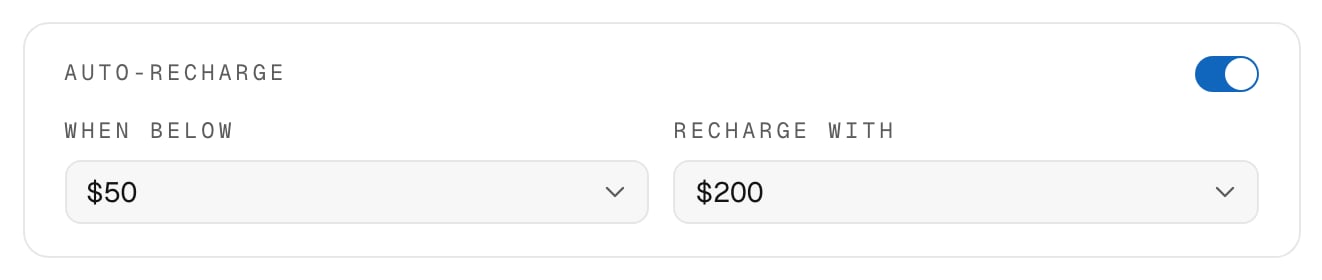
Step 7: Choose what happens when the balance runs out
Under Credit Guard, choose one:- Stop calls: new calls stop when the client’s balance runs out. A call that is already running finishes, and your wallet pays for its extra minutes.
- Keep calling on your minutes: calls go on, and your agency wallet pays for them. This is the default.


Turn rebilling off
Under Who pays, click You, then Switch. The client’s unused minutes go back to your agency wallet. Its card is unlinked and auto-recharge turns off. Nothing is refunded to your client, so settle up with them yourself. To switch many clients at once, click Select above the list, pick the clients, and switch them to You.Next steps
- AI interactions: how chatbot texts use your client’s minutes.
- Balances, spend and sub-account wallets: what every billing figure means.
- Set up rebilling for a sub-account: the same setup over the API, starting with Update sub-account rebilling.