
Before you start
- You can open the inbox of the email address you sign in with.
- Your new password has at least 12 characters.
Step 1: Ask for a reset code
1
Open the reset page
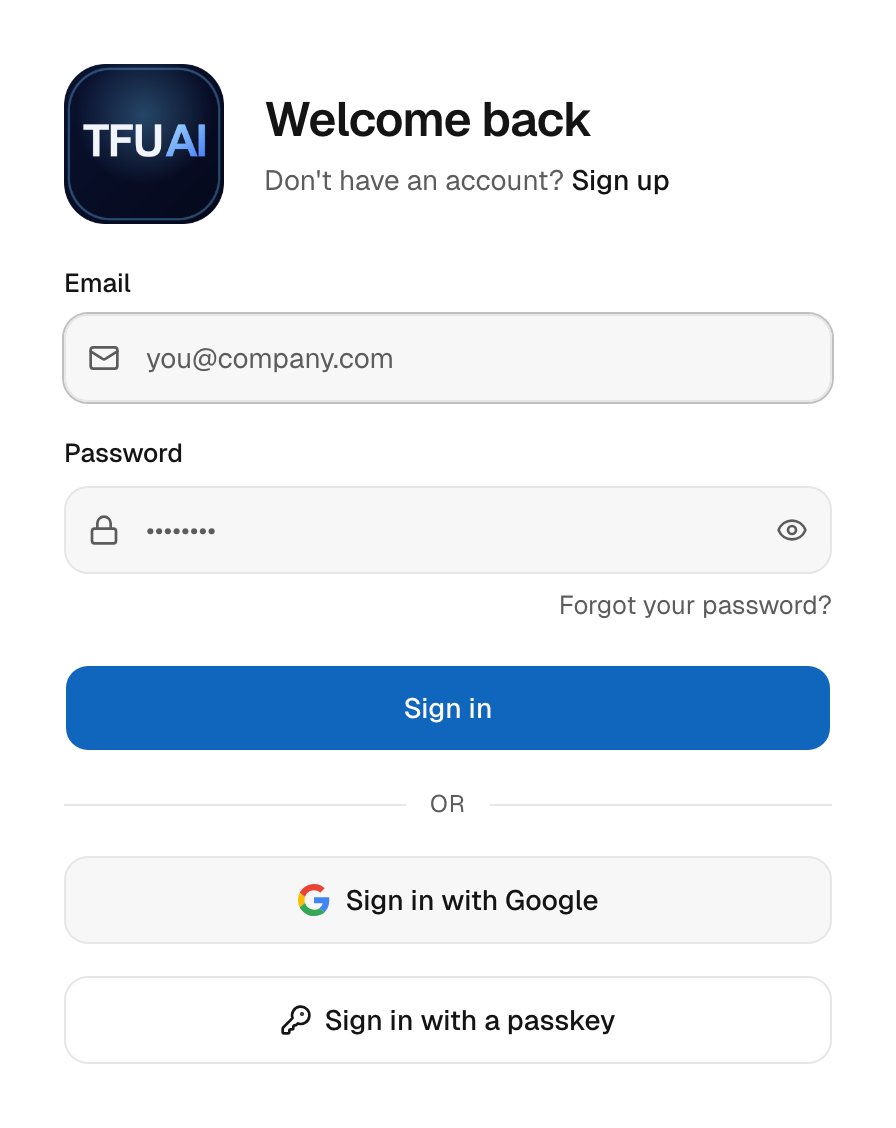
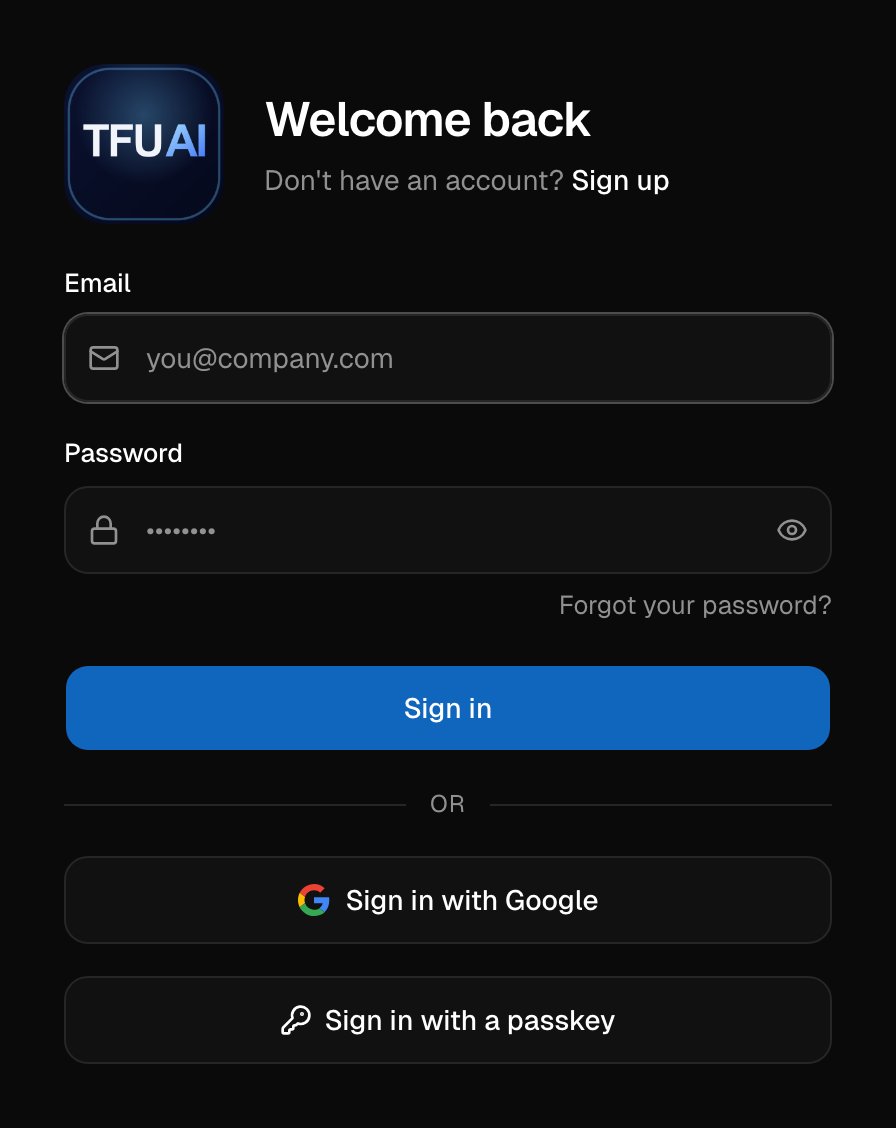
2
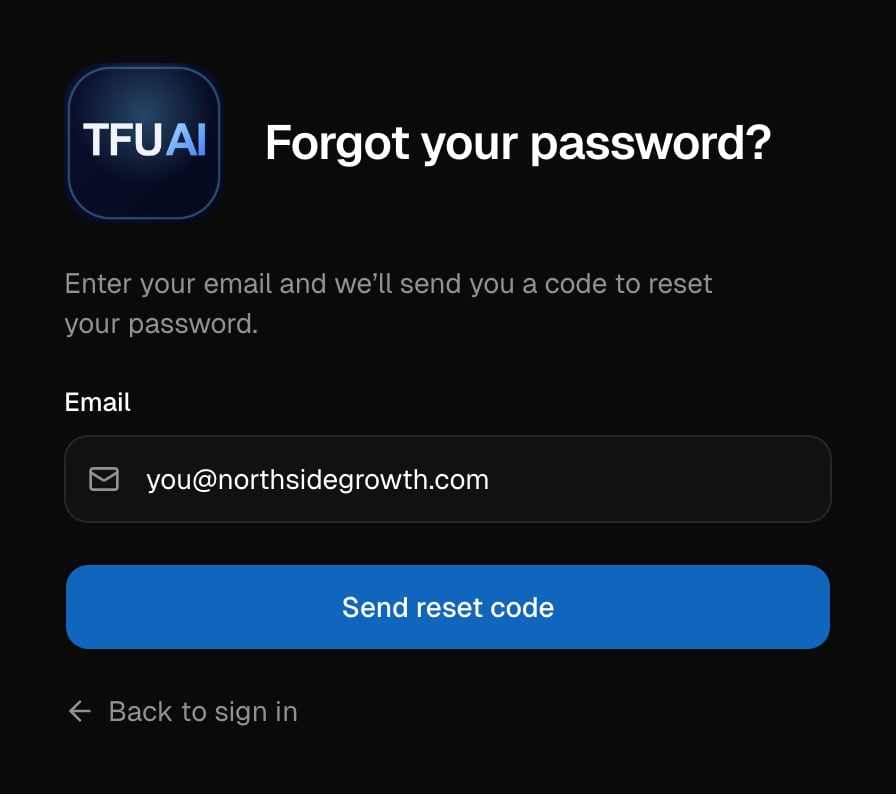
Send the code
Enter the email address you sign in with, then click Send reset code.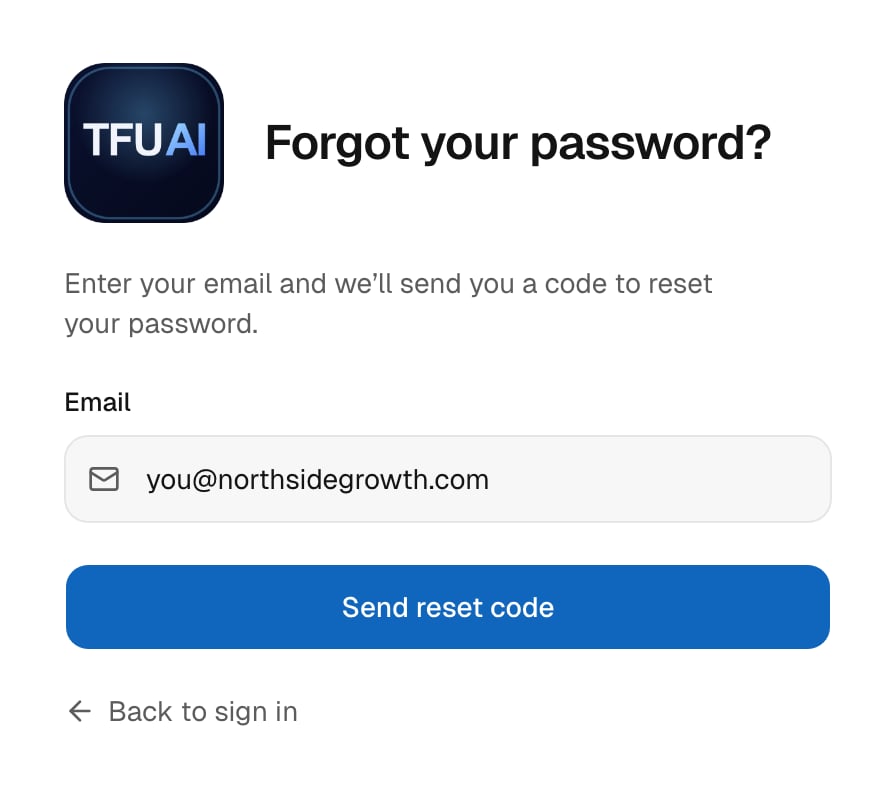
Step 2: Enter the code
1
Find the email
Open the email we sent you. It can take a minute to arrive, so check your
spam folder too.
2
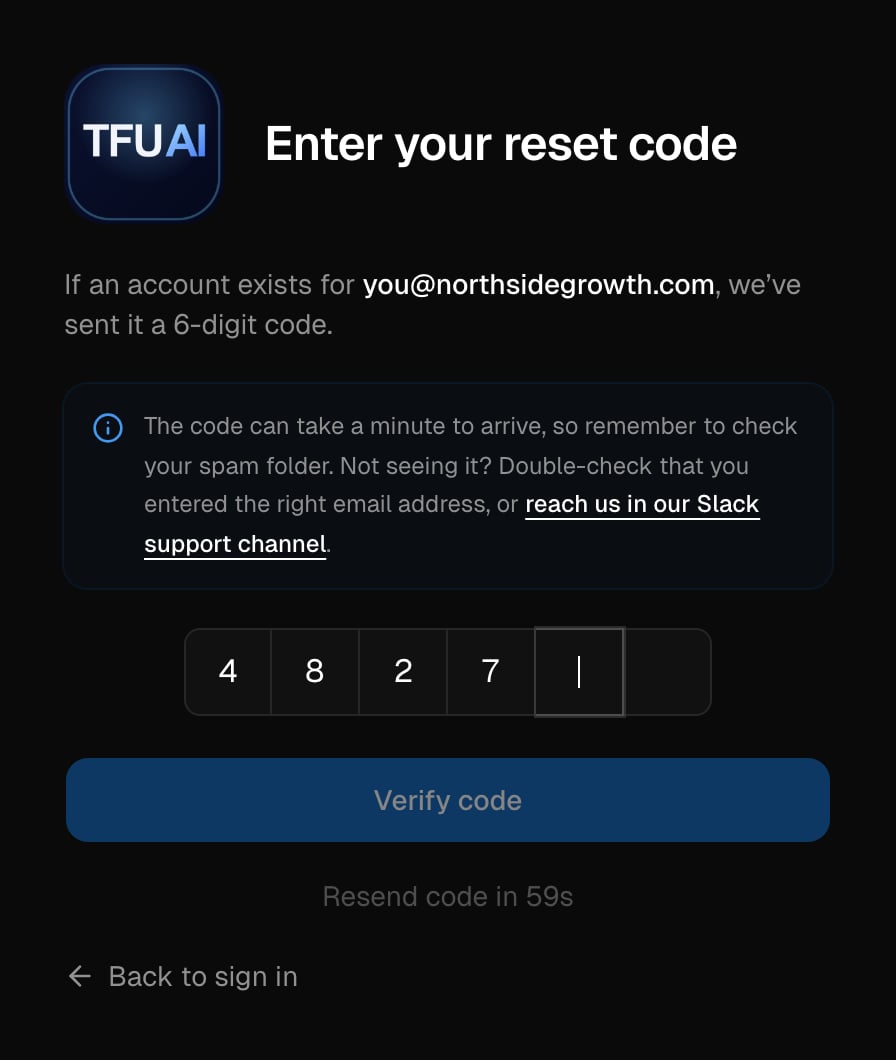
Type the code
Type the 6-digit code. It is checked as soon as you type the last digit.
You can also click Verify code.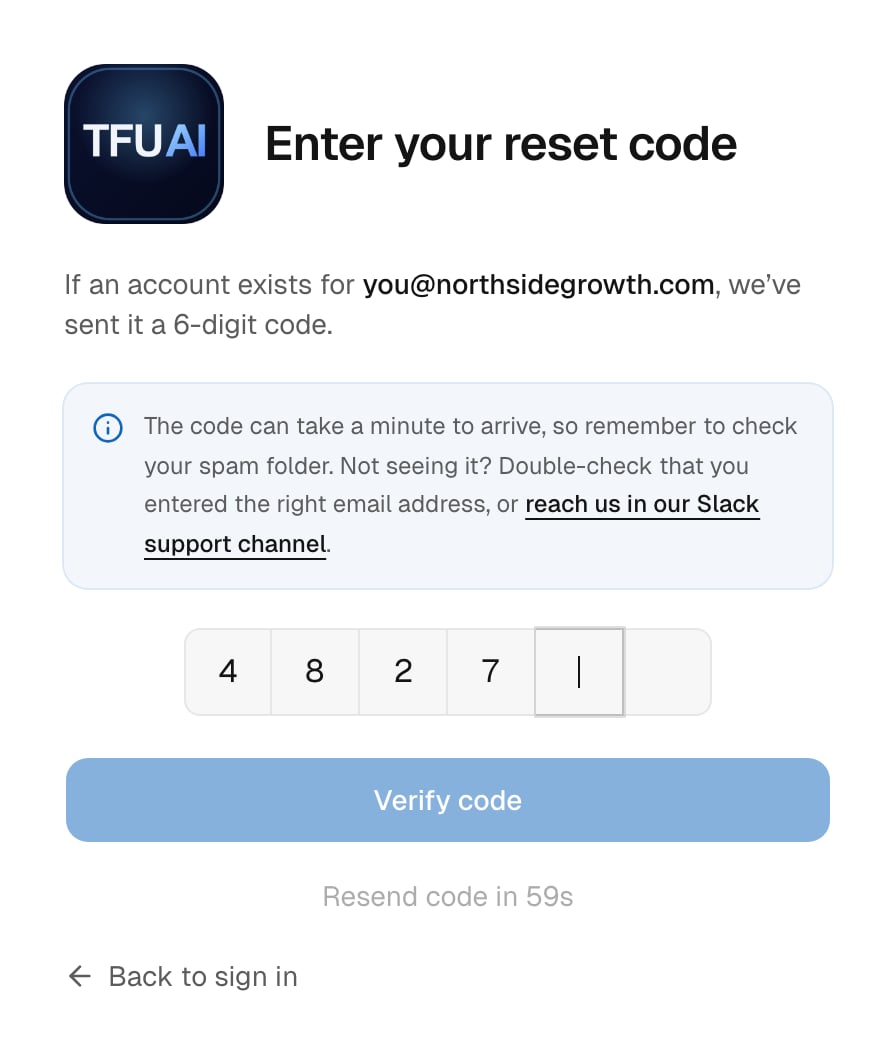
Step 3: Set a new password
1
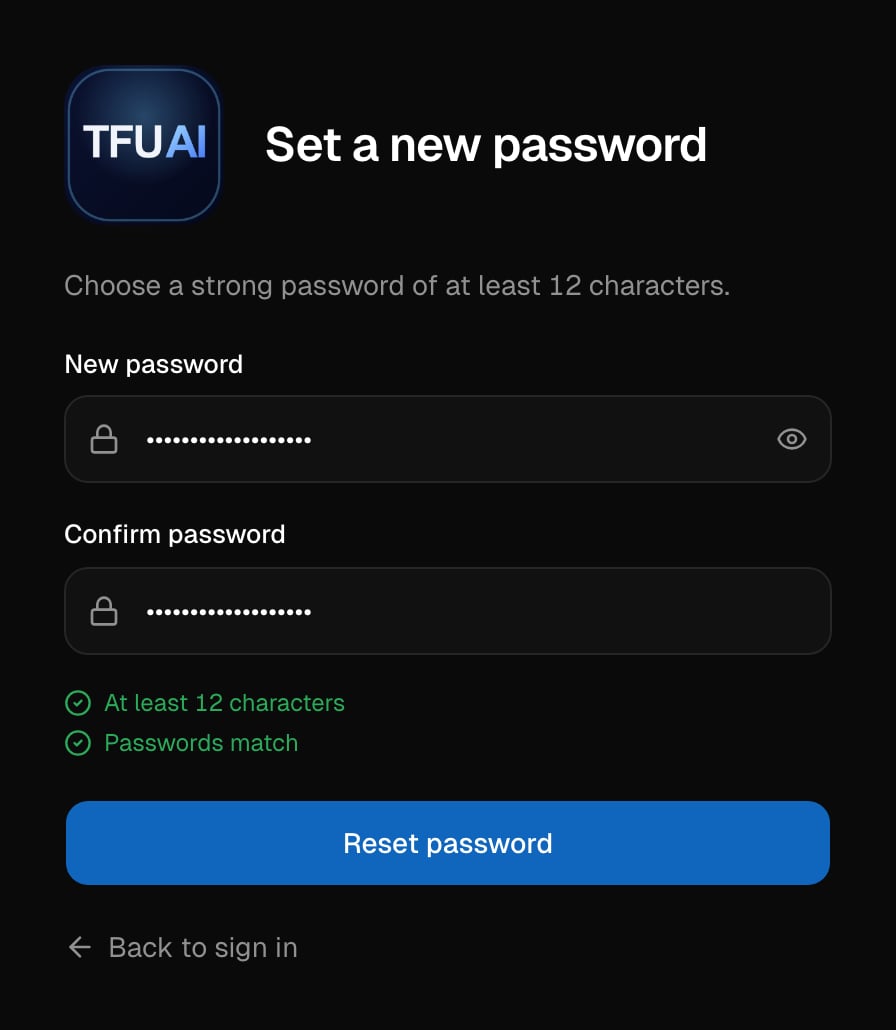
Enter the new password
Type it in New password, then again in Confirm password.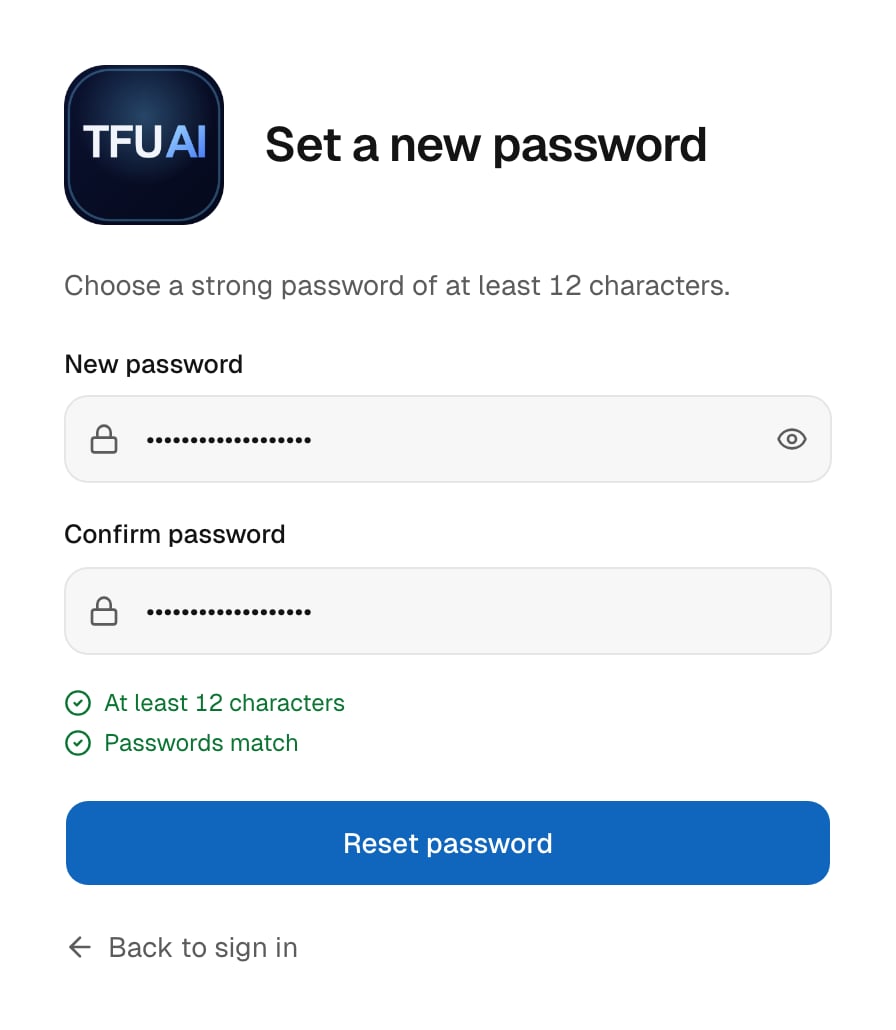
2
Save it
Click Reset password. When you see Password reset, click Back to
sign in and sign in with the new password.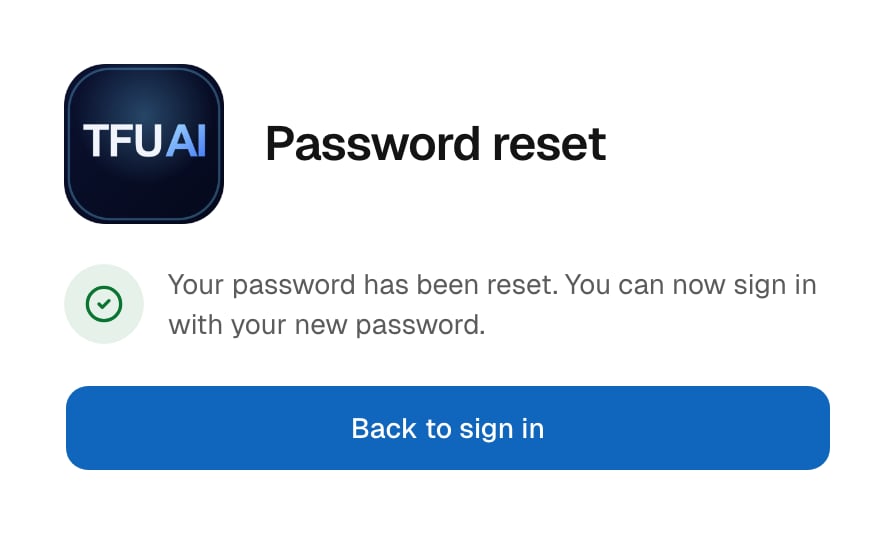
- have at least 12 characters,
- be different from the password you use now,
- not be a password that was shared in a data breach.
A reset signs you out on every device. Devices you trusted for two-step
sign-in ask for the code again.
Change it while you are signed in
- Go to Settings, then Security.
- Under Password, enter your Current password.
- Enter the New password, then again in Confirm new password.
- Click Update password.
Troubleshooting
The code did not arrive
The code did not arrive
Wait a minute, then check your spam folder. Check that you entered the
email address you sign in with. We send a code only to an account that
exists and is active. Still nothing? Click Didn’t get the code? Resend.
The code does not work
The code does not work
A code stops working after 10 minutes or after 5 wrong tries. A new code
also replaces the old one. Click Didn’t get the code? Resend and use
the newest email.
I see a message about too many requests
I see a message about too many requests
The message is That’s a lot at once. Please wait a moment and try
again. Too many reset requests came from your network in a short time.
Wait 15 minutes, then try again.
My new password is refused
My new password is refused
The message tells you why. The password is too short, it is the one you use
now, or it was shared in a data breach. Choose a different password with at
least 12 characters.
The email shows my agency's name
The email shows my agency's name
That is correct when you sign in on your agency’s own web address. The
reset email then uses your agency’s name.
I still cannot sign in
I still cannot sign in
If your agency gave you access, ask an agency admin to reset it. In
Settings, then User Management, they open the menu on your row.
Then they click Reset Password. We email you the new password and
sign you out on every device.If you run the agency account, reach us in our
Slack support channel.
Next steps
- Quickstart: create an agent and hear it call you.
- Agencies, projects and sub-accounts: who can sign in to what.
- How-to guides: more step-by-step guides.