
Does the sub-account use GoHighLevel? Then connect Google Calendar inside
GoHighLevel, and book into that GoHighLevel calendar instead.
How it works
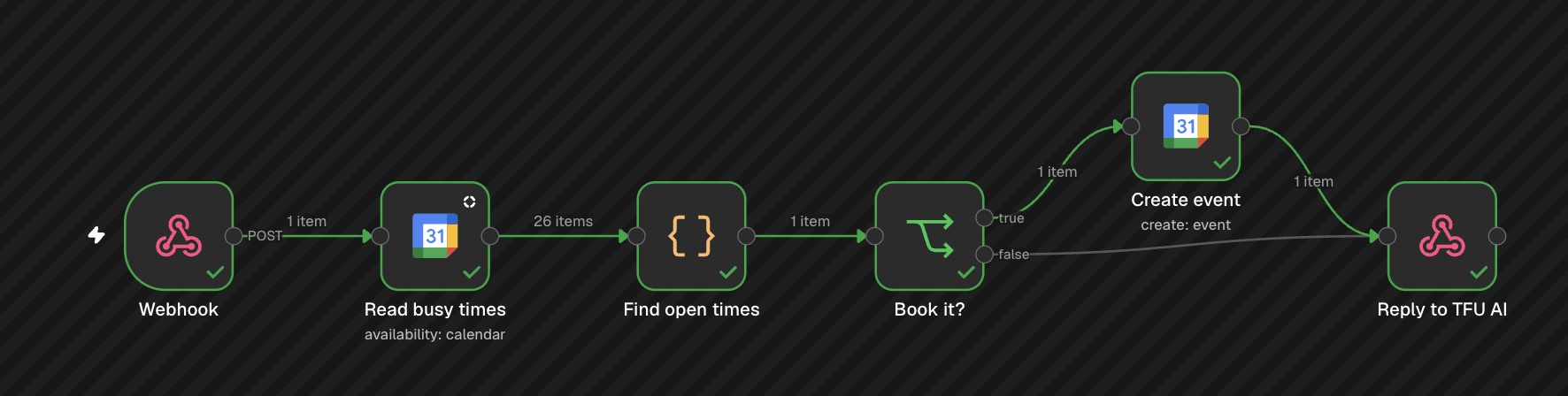
You add one workflow to n8n and two workflows to your agent.
n8n only offers times inside your opening hours. It refuses any other time, even
if the agent asks for one.
Before you start
- An n8n account. n8n Cloud connects Google with one button.
- The Google account whose calendar gets the bookings.
- A TFU Live agent.
Step 1: Add the workflow to n8n
1
Copy the workflow
Open The n8n workflow below and copy the JSON.
2
Paste it into n8n
In n8n, create a new workflow. Click the empty canvas and paste. If n8n
asks whether you are pasting from an AI tool, click Skip.You can also save the JSON as a file. Then open the … menu at the
top and choose Import, then From file.
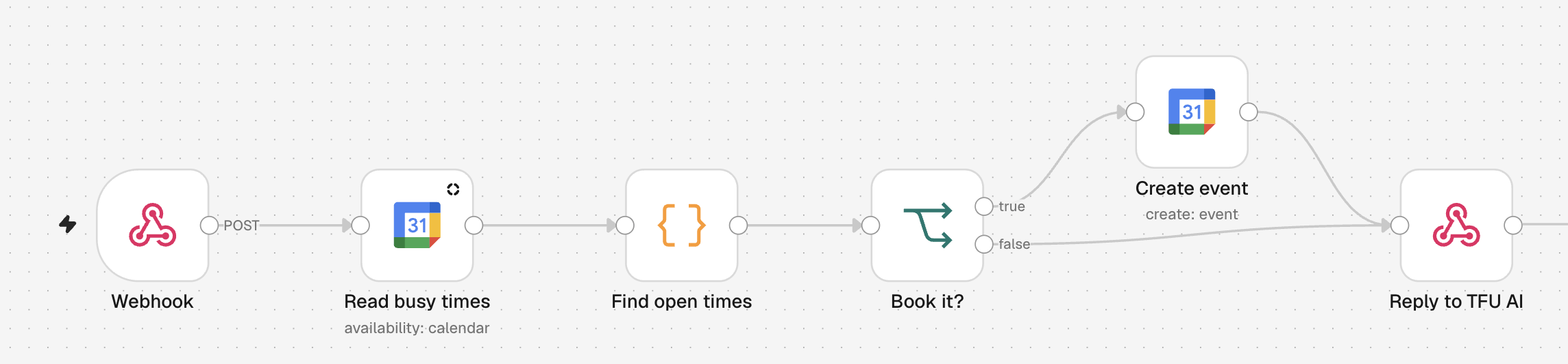
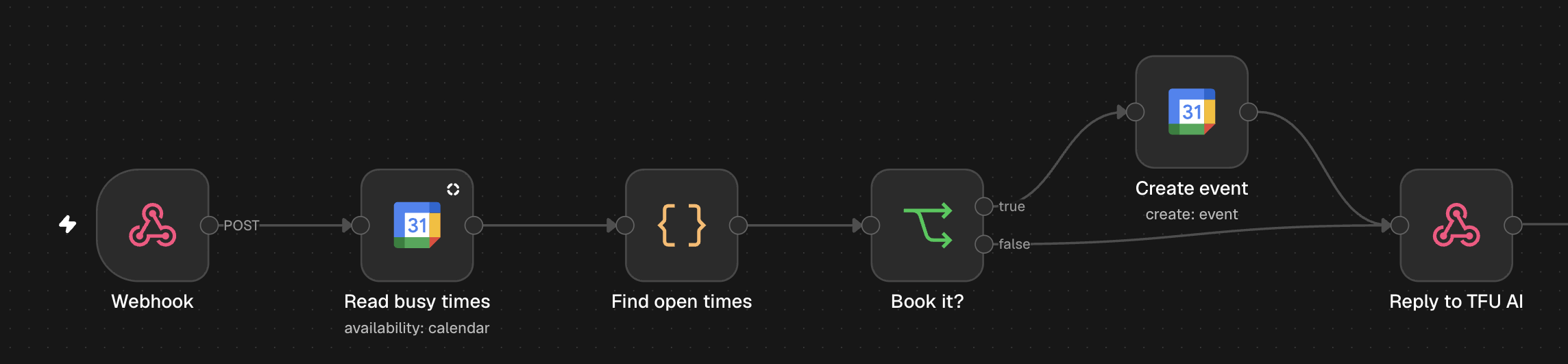
The n8n workflow
The n8n workflow
Step 2: Connect Google Calendar
1
Sign in with Google
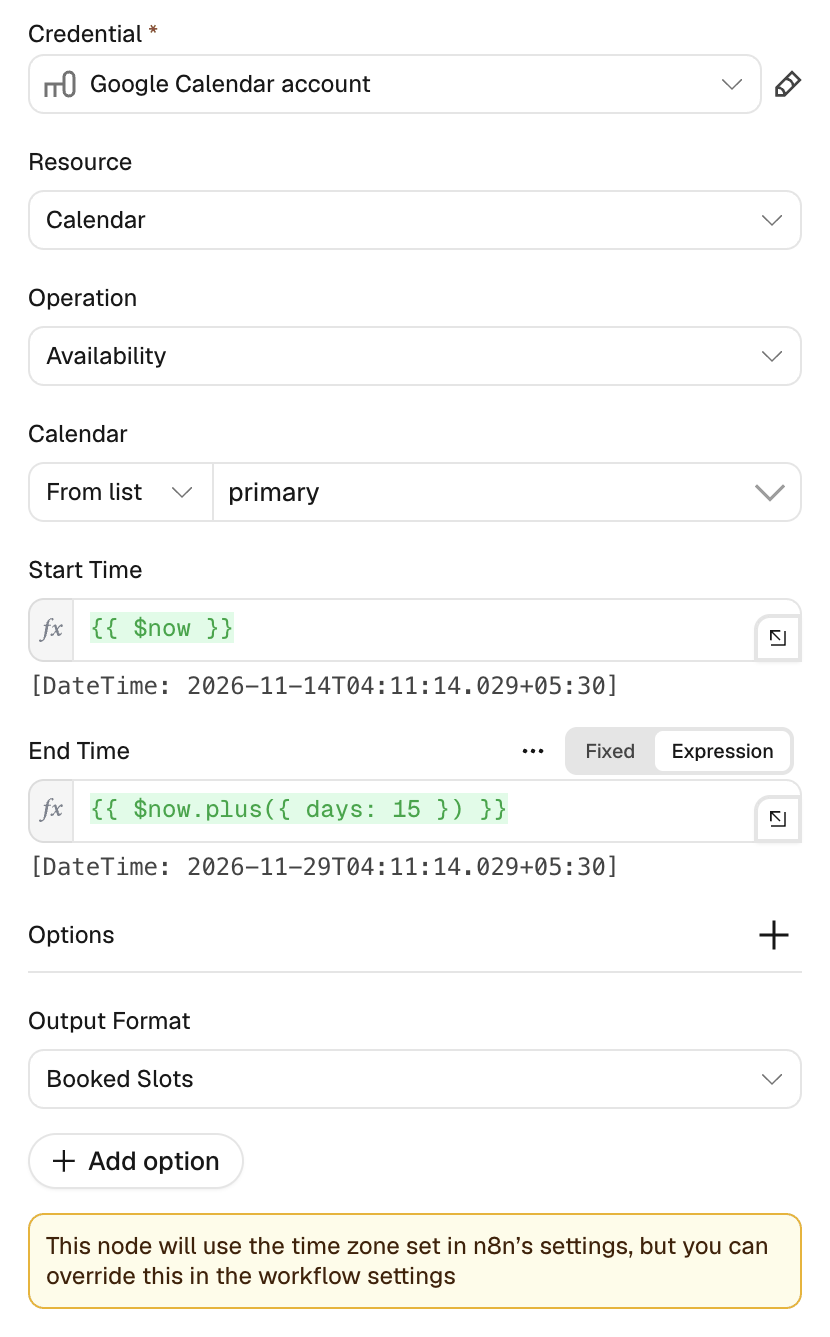
Open Read busy times. Under Credential, create a new credential.
Click Sign in with Google, choose the account and click Allow.
2
Choose the calendar
Under Calendar, keep primary or choose another calendar.
3
Do the same in Create event
Open Create event. Choose the same credential and the same calendar.
Self-hosted n8n has no one-click Google sign-in. Create your own Google
client first, as in
n8n’s Google guide.
If that Google app stays in testing mode, the sign-in ends after seven days.
Then sign in again.
Step 3: Protect the webhook
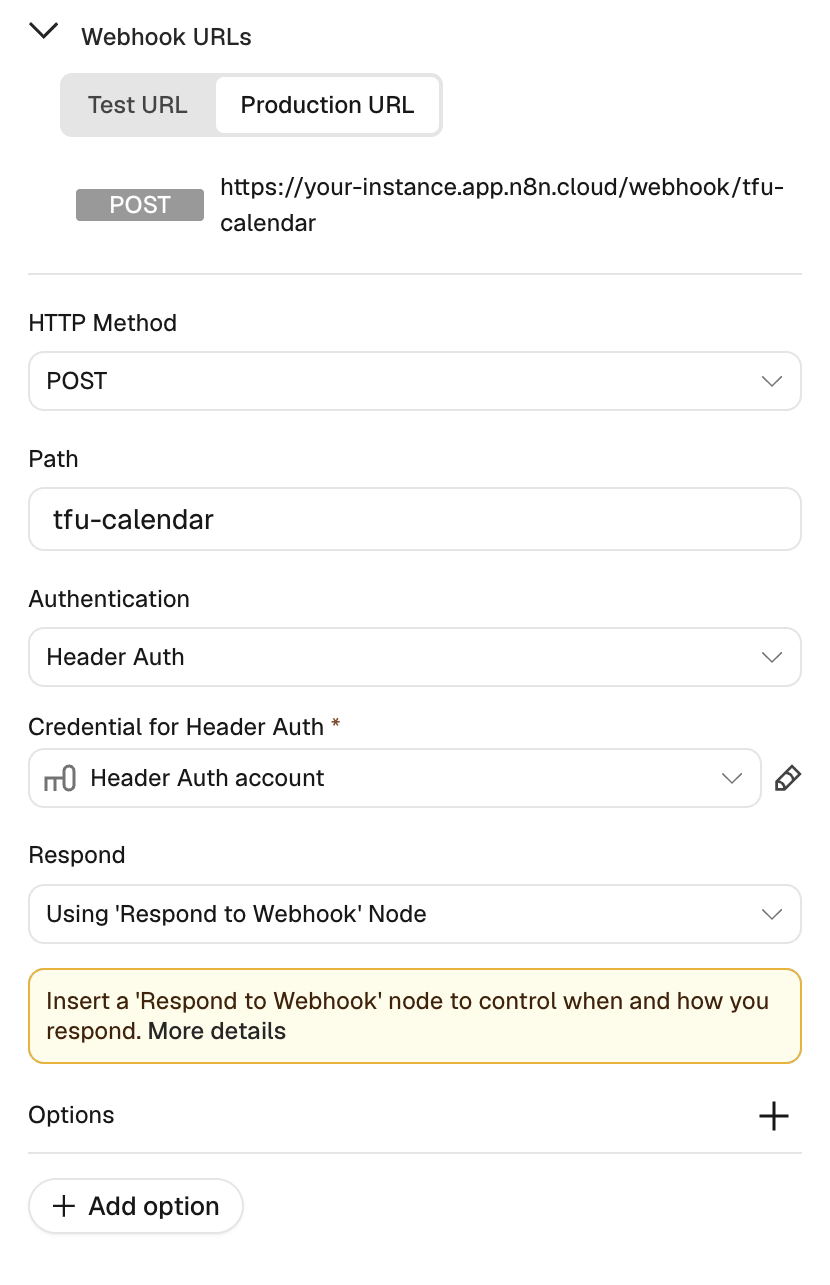
Anyone with the webhook address could book into your calendar. A secret header stops that. n8n refuses a request without it.1
Open the Webhook node
Authentication is already Header Auth. Under Credential for
Header Auth, create a new credential.
2
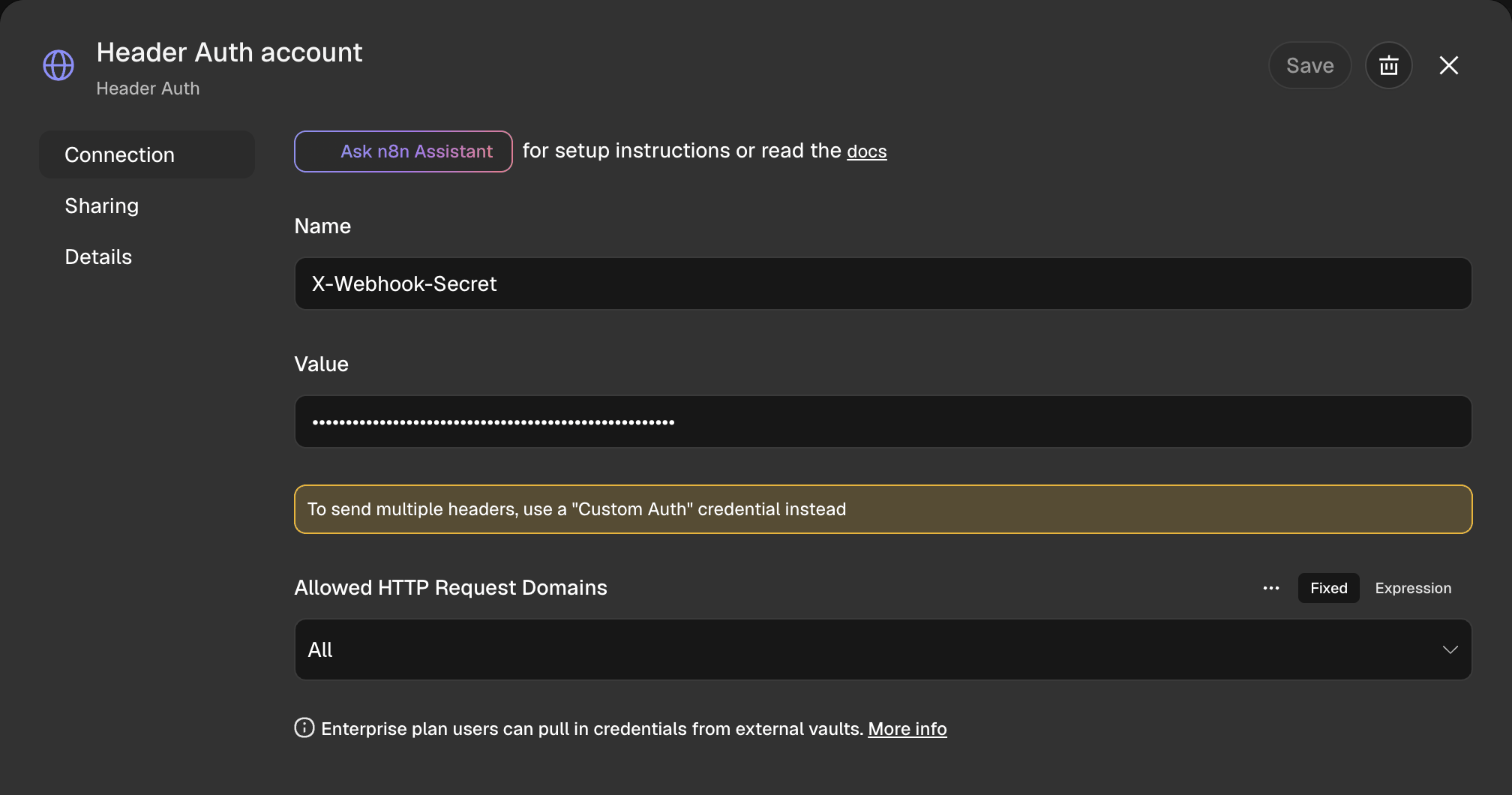
Set the secret
Enter
X-Webhook-Secret as the Name. Enter a long random string as
the Value. Keep a copy for Step 6, then click Save.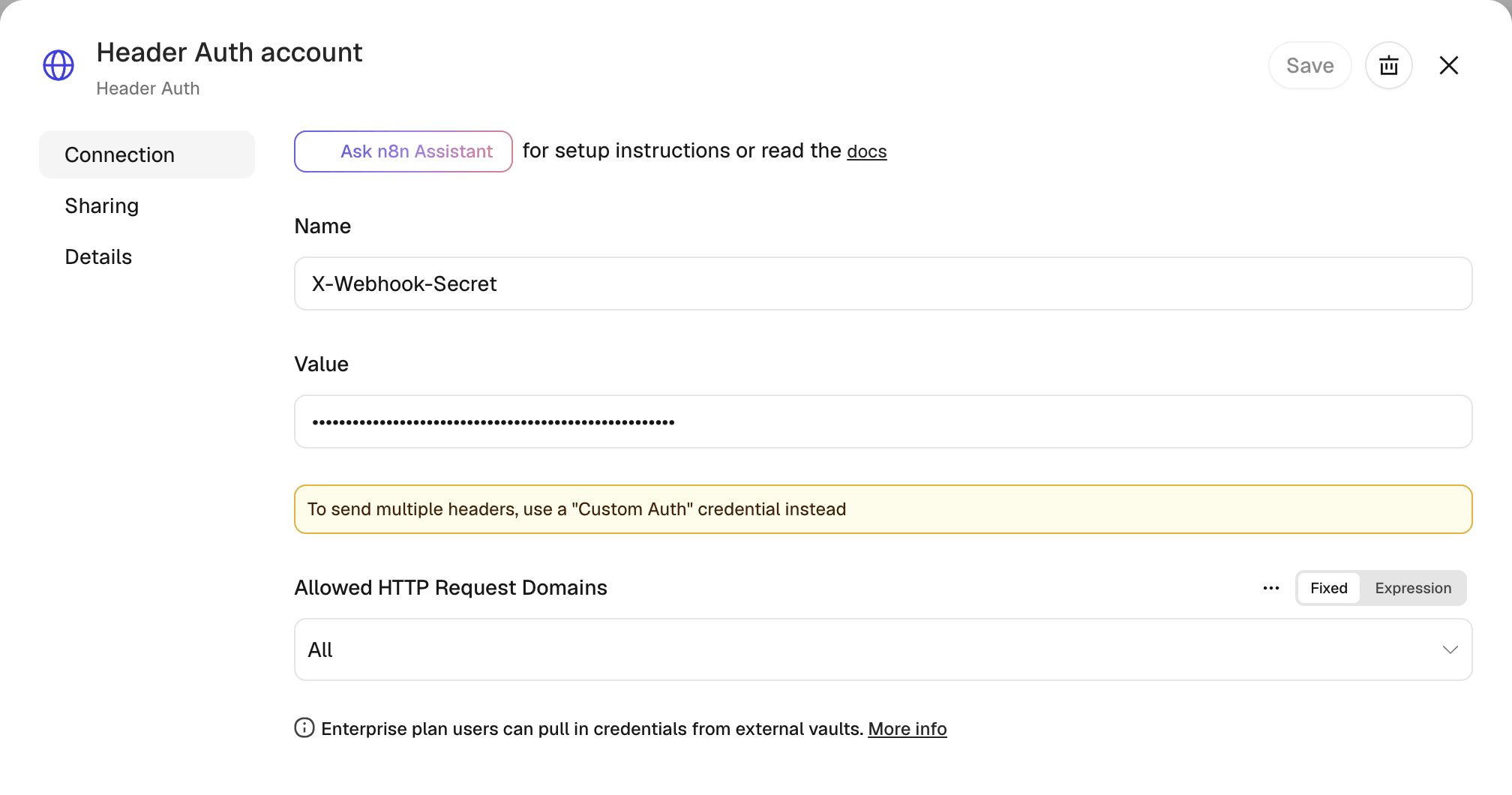
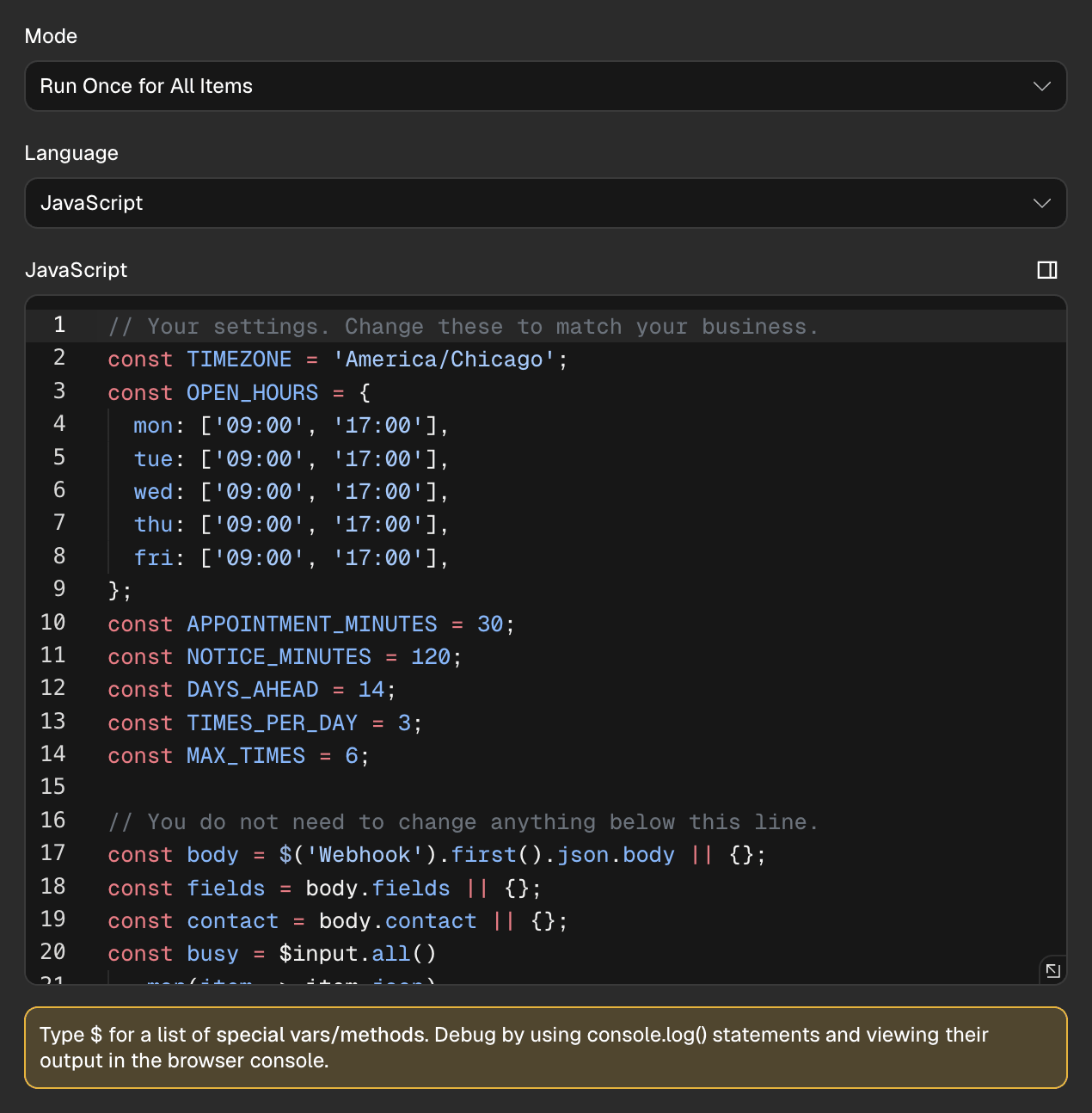
Step 4: Set your opening hours
Open Find open times. Change the settings at the top of the code. Do not change anything below the line that says so.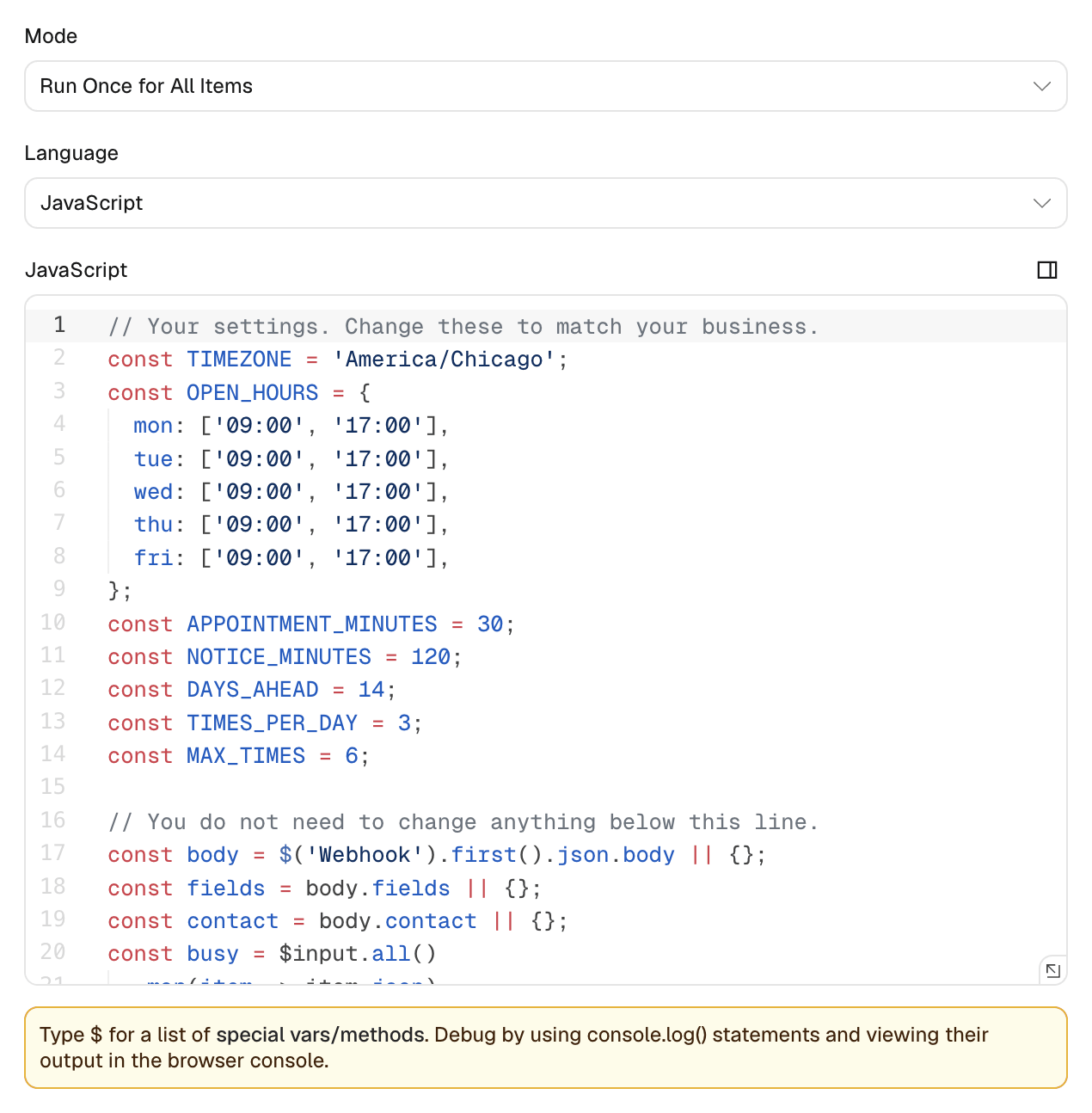
Step 5: Publish and copy the address
1
Publish
Click Publish at the top right, then Publish again.
2
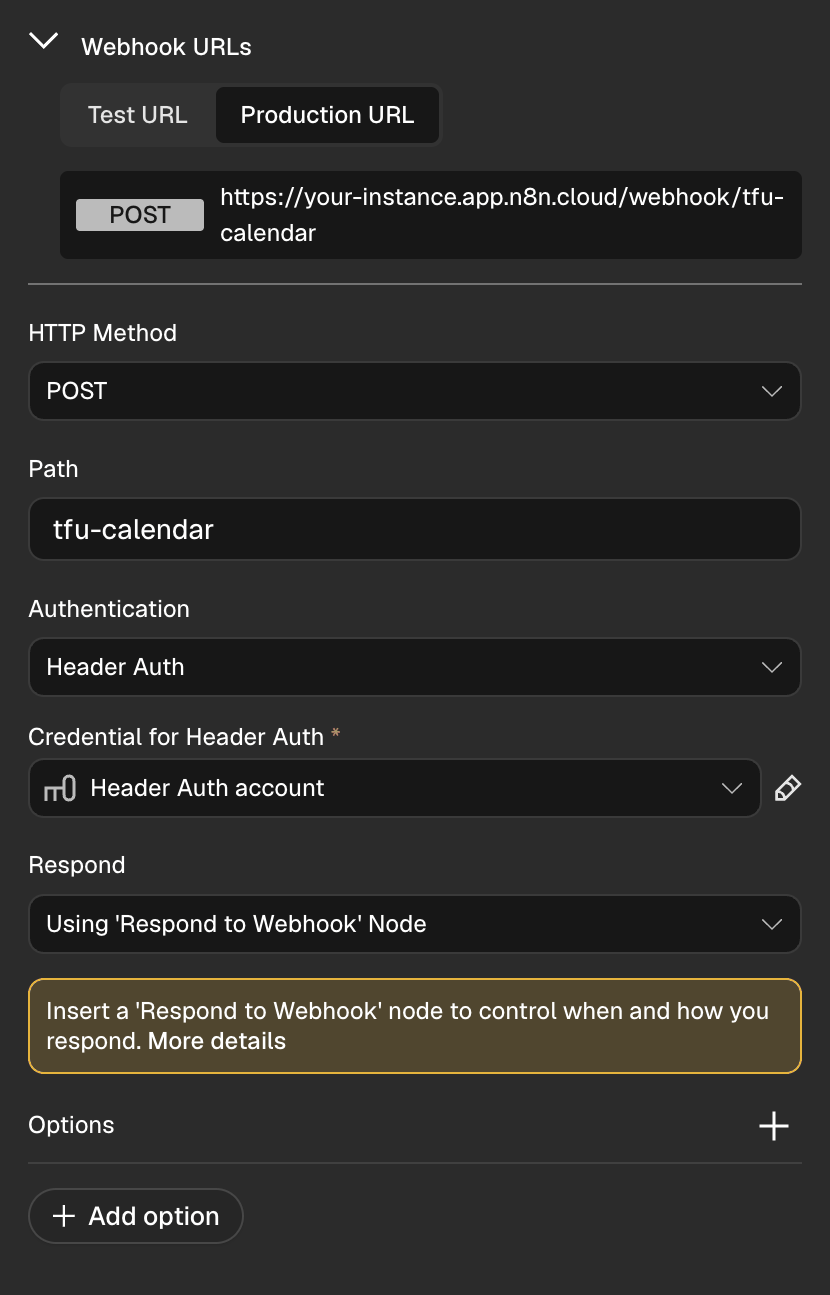
Copy the Production URL
Open Webhook. Under Webhook URLs, click Production URL and
copy it. The Test URL works only while n8n listens for a test event.
Step 6: Add Find a time to your agent
Open the agent and click Configure myself. On Brain, click Actions. Click Add a workflow, then Start blank.1
Name it
Enter 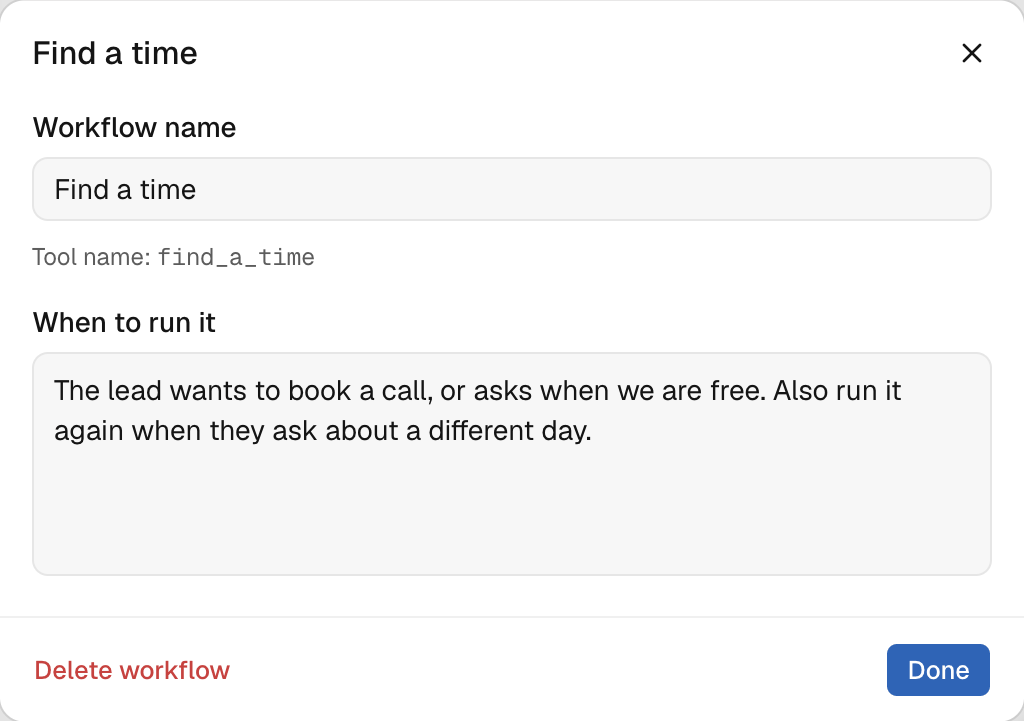
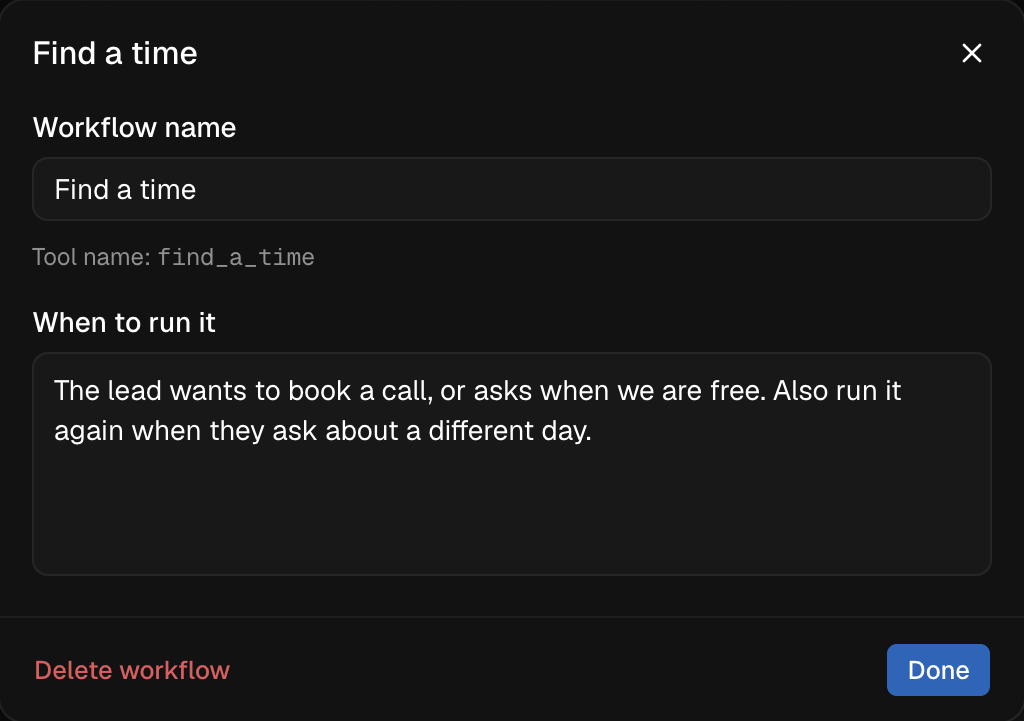
Find a time as the Workflow name. Under When to run it,
enter The lead wants to book a call, or asks when we are free. Also run it again when they ask about a different day. Click Done.2
Ask for a day
Click + after the workflow, then Collect information.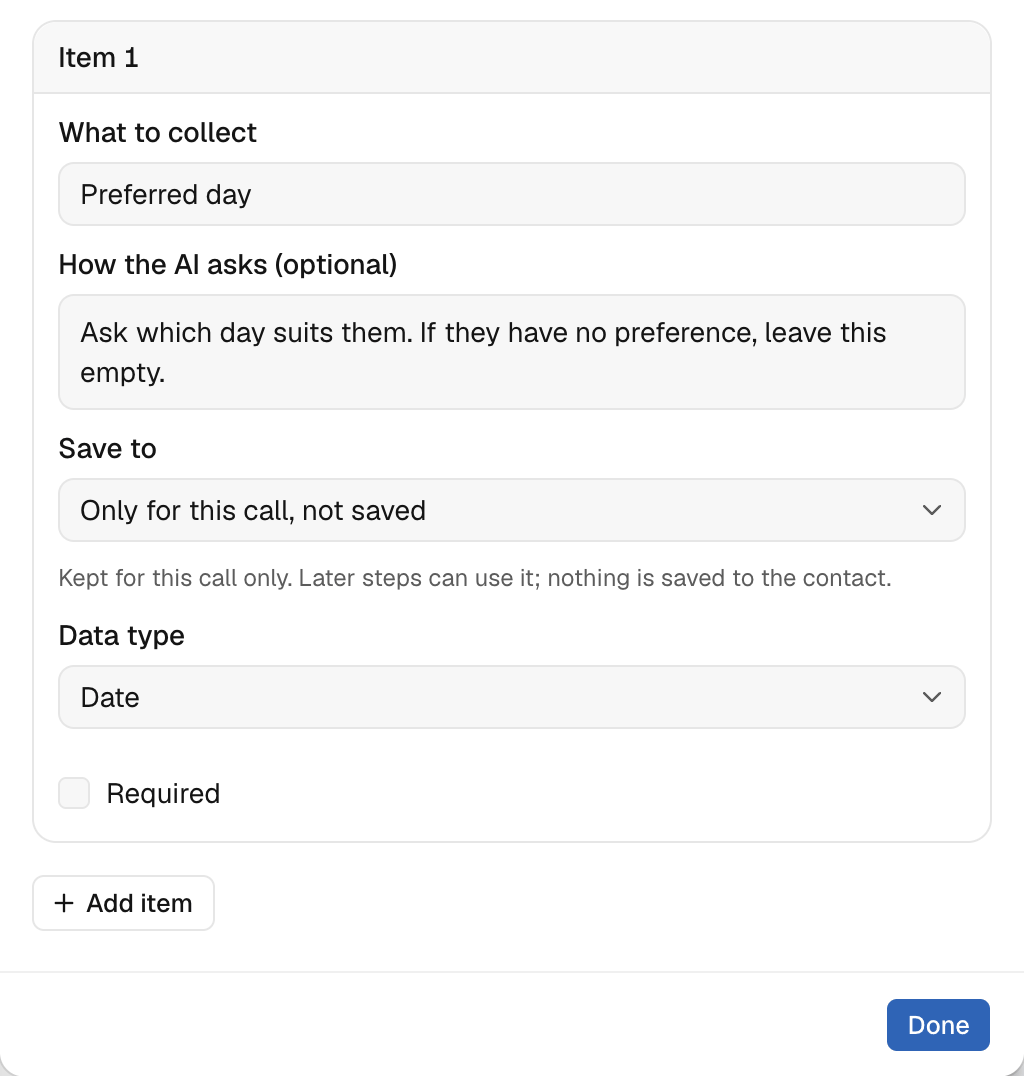
3
Call n8n
Click + after it, then Webhook with response.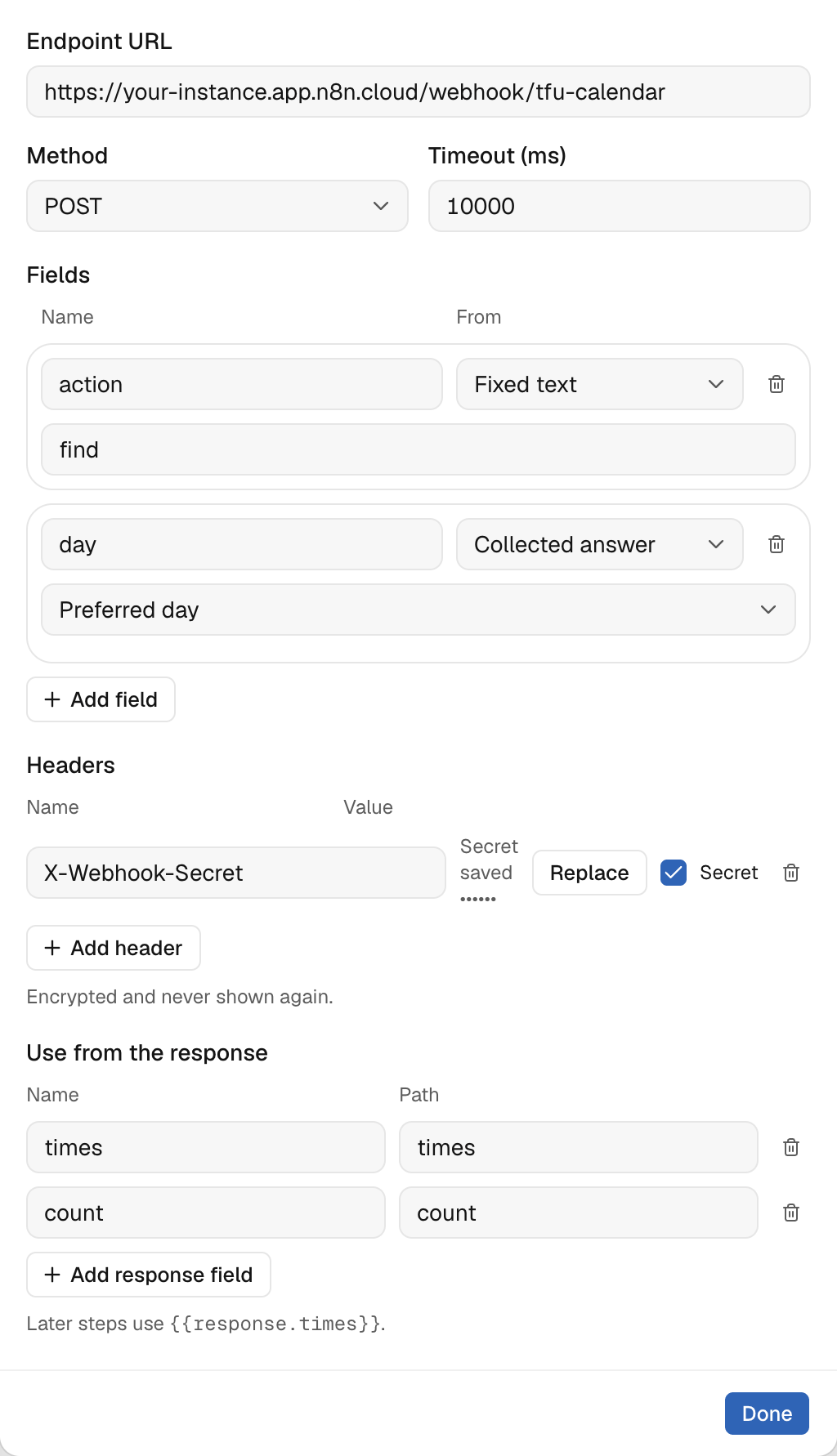
4
Tell the agent what to say
On Success, add Steer the agent with this guidance:On Failed, add another Steer the agent:


Step 7: Add Book the time to your agent
Click Add a workflow, then Start blank again.1
Name it
Enter
Book the time as the Workflow name. Under When to run it,
enter The lead picked one of the times that Find a time gave you and said yes to it.2
Get the chosen time
Add Collect information. Enter
Time code under What to collect.
Under How the AI asks, enter Use the code of the time the caller picked, from Find a time. Never ask the caller for a code. Keep Text and Required.3
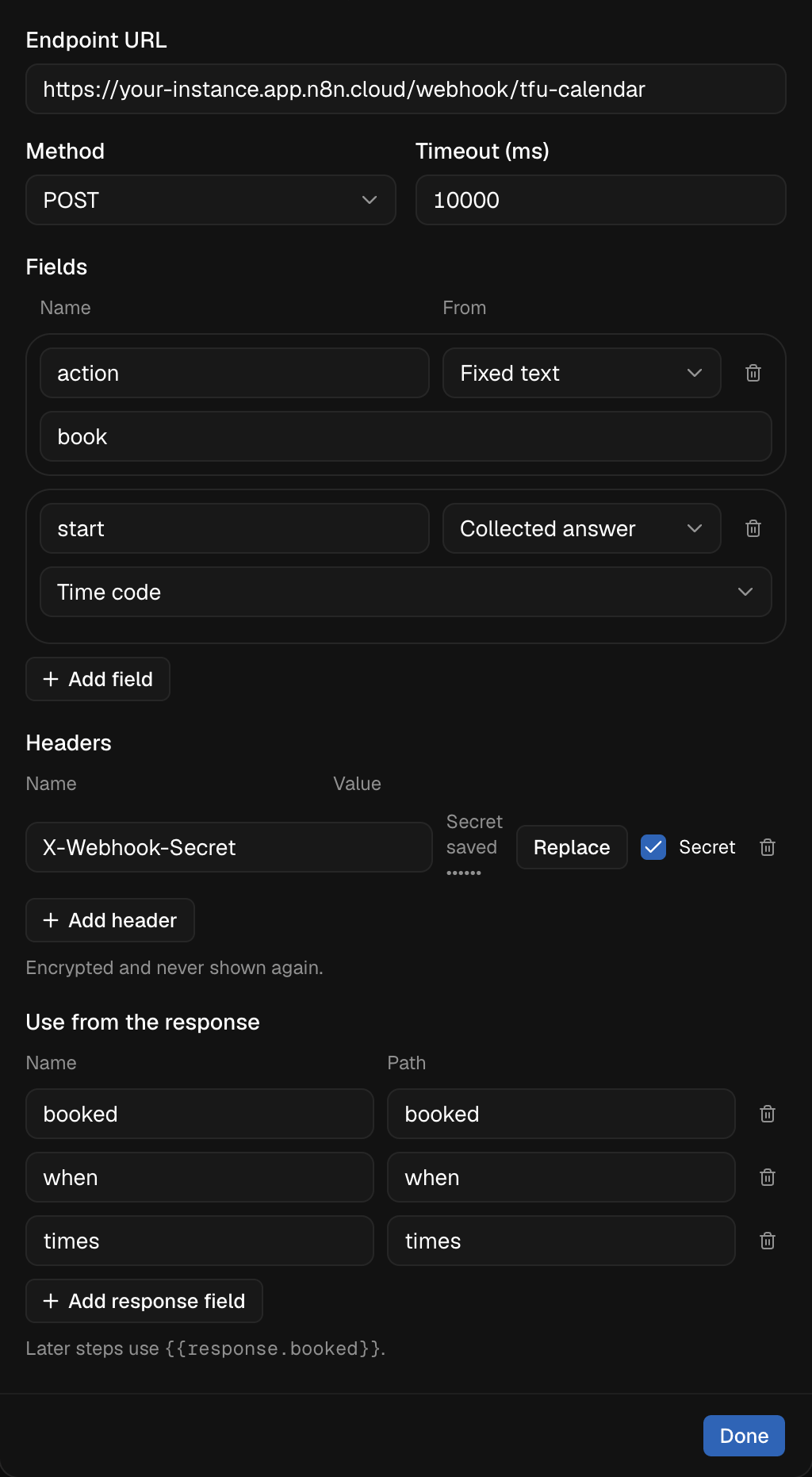
Call n8n
Add Webhook with response. Use the same address, method, timeout and
header as in Step 6.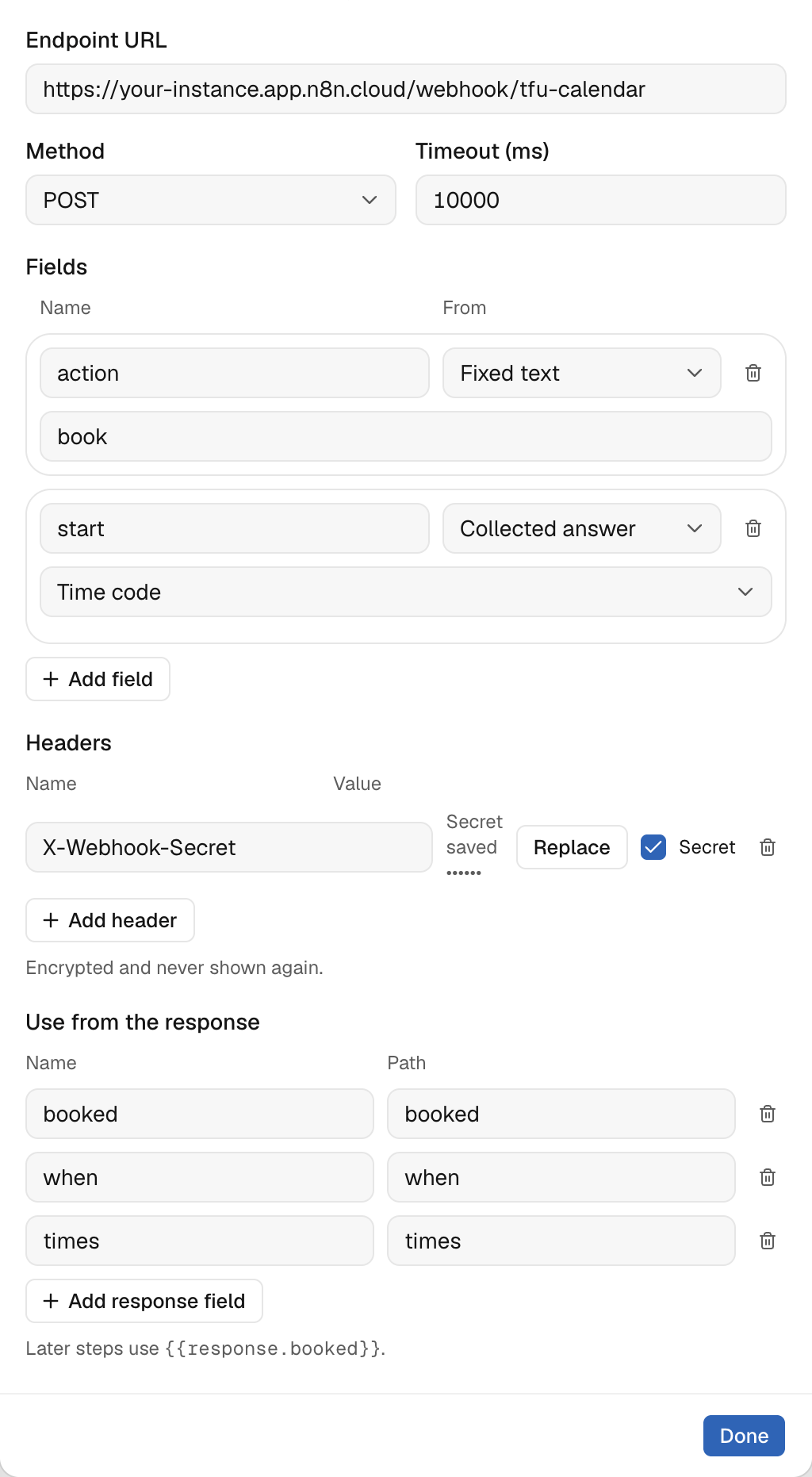
4
Check the answer
On Success, add Condition. Choose booked as the Field,
equals as the Comparison and 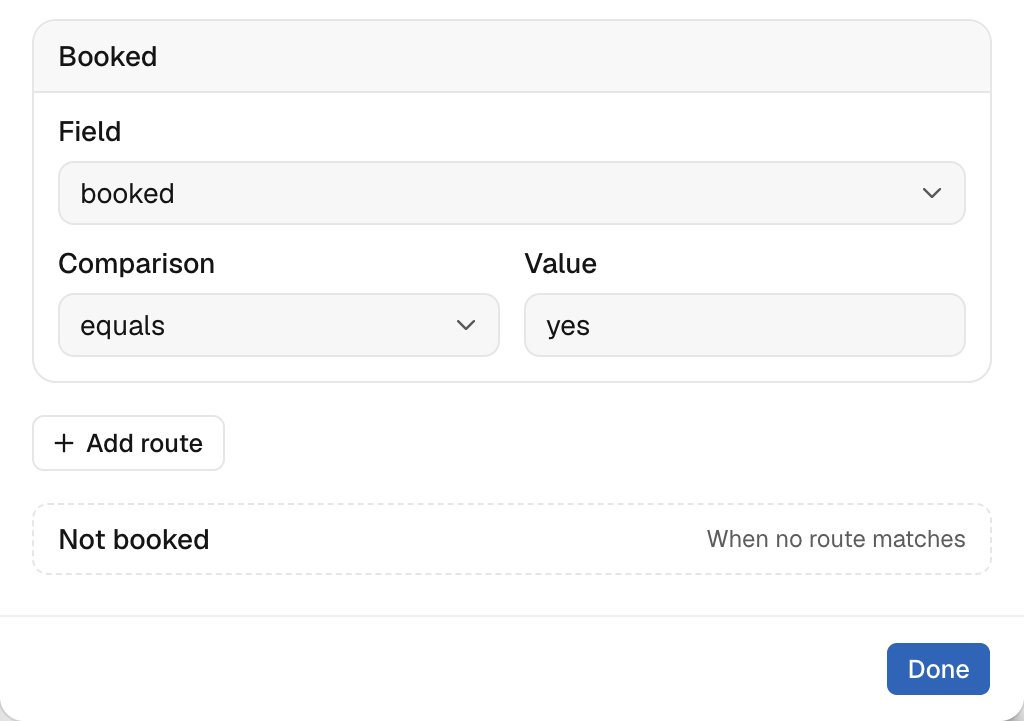
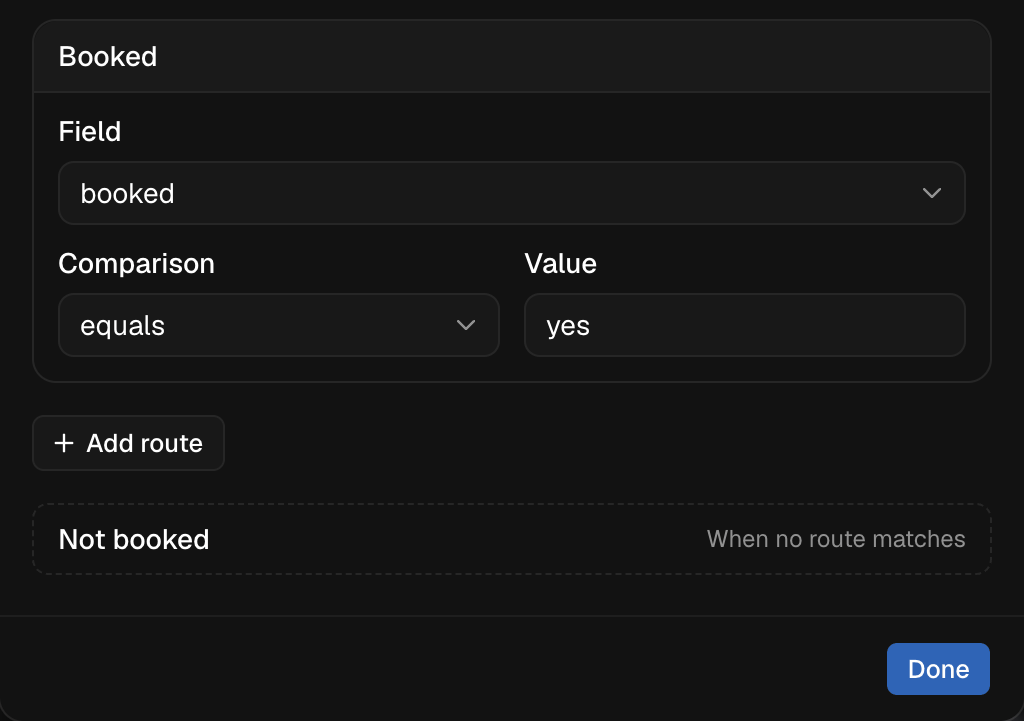
yes as the Value. Name the
route Booked, and name Otherwise Not booked.5
Tell the agent what to say
Add Steer the agent on each route.On Booked:On Not booked:On Failed:
6
Save
Click Save changes.


Step 8: Test it with a real call
1
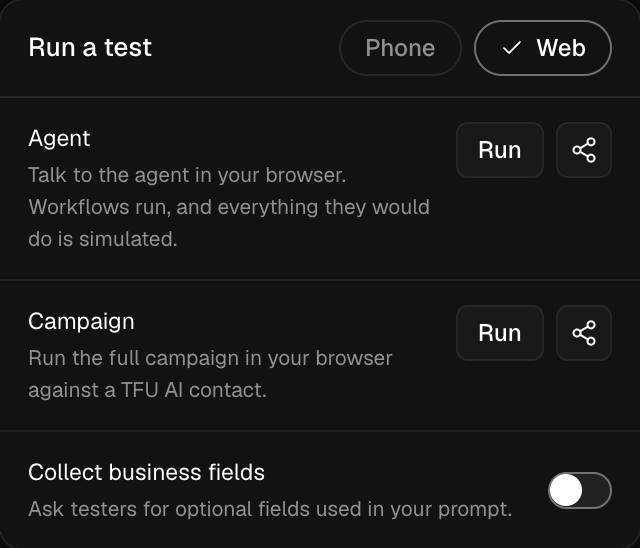
Start a campaign test in your browser
Click Test, choose Web, then click Run next to Campaign.
Enter a name and a phone number, then click Start campaign session.
This is a real call in your browser, so the booking is real too.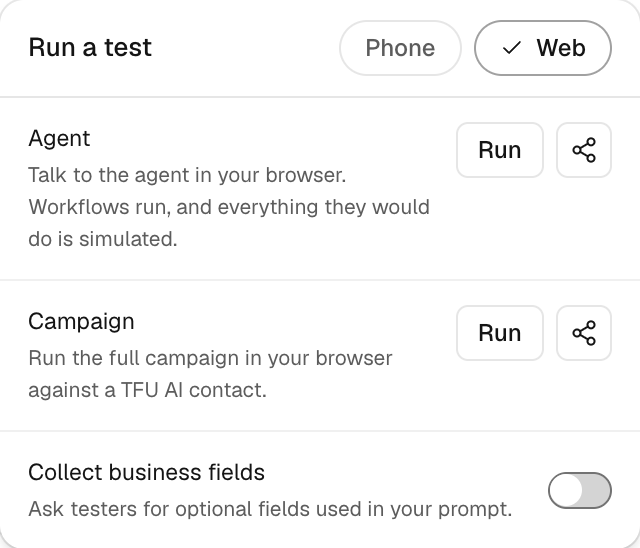
2
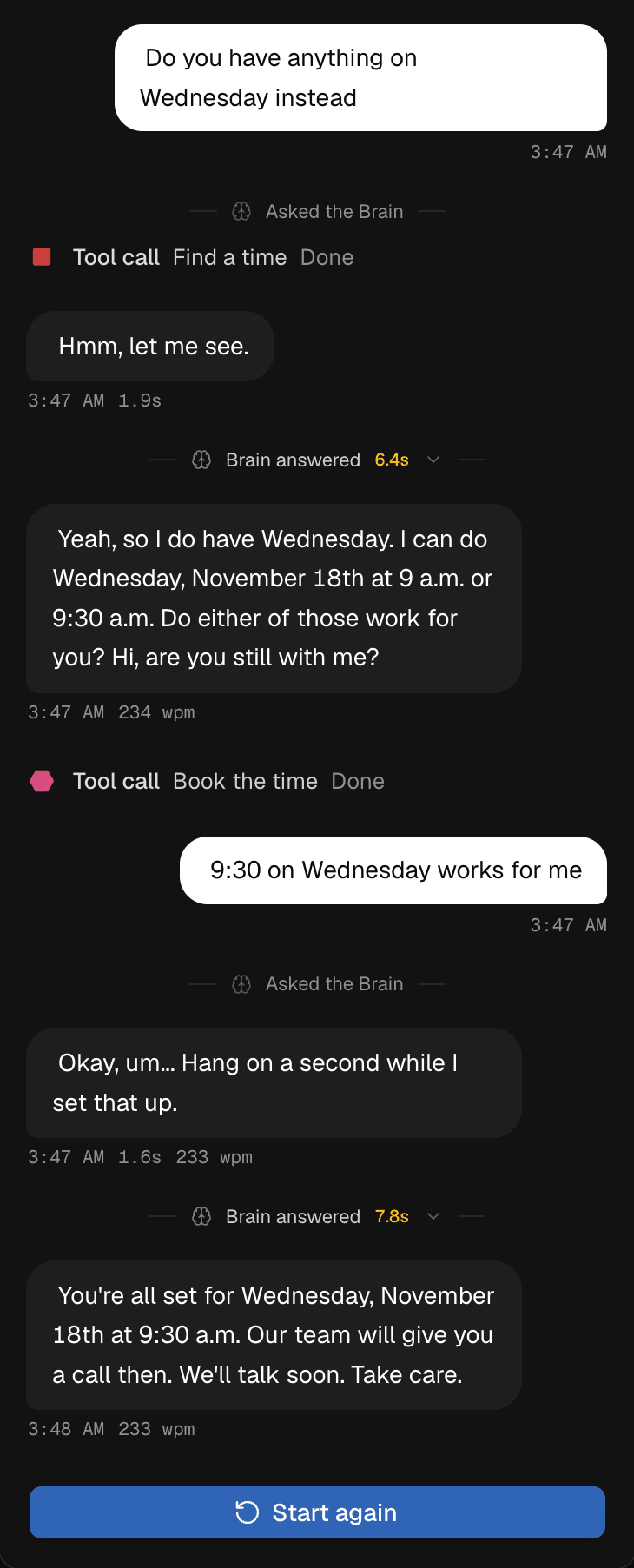
Book a time
Ask for a call, ask for a day and pick a time. The conversation shows
each workflow as it runs.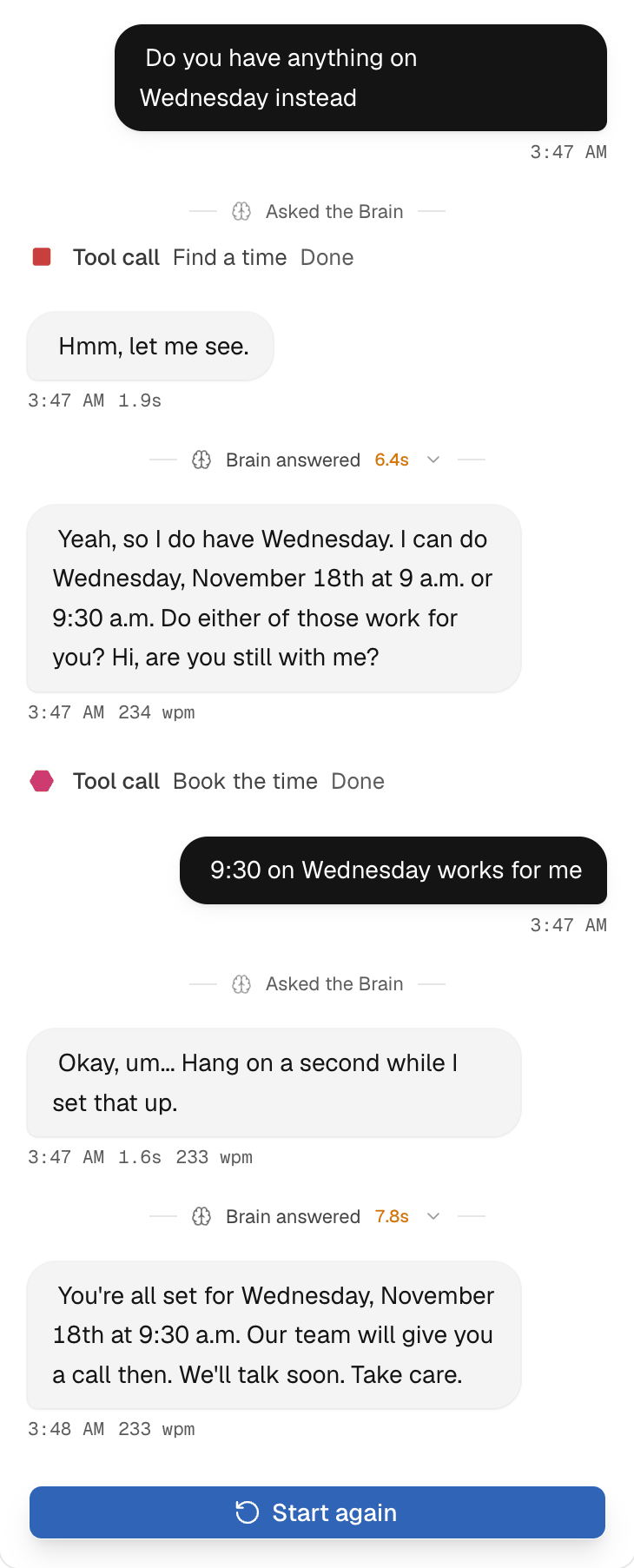
3
Check n8n and Google Calendar
In n8n, open Executions. A booking shows every step in green. The
event is in Google Calendar, with the lead’s phone and email.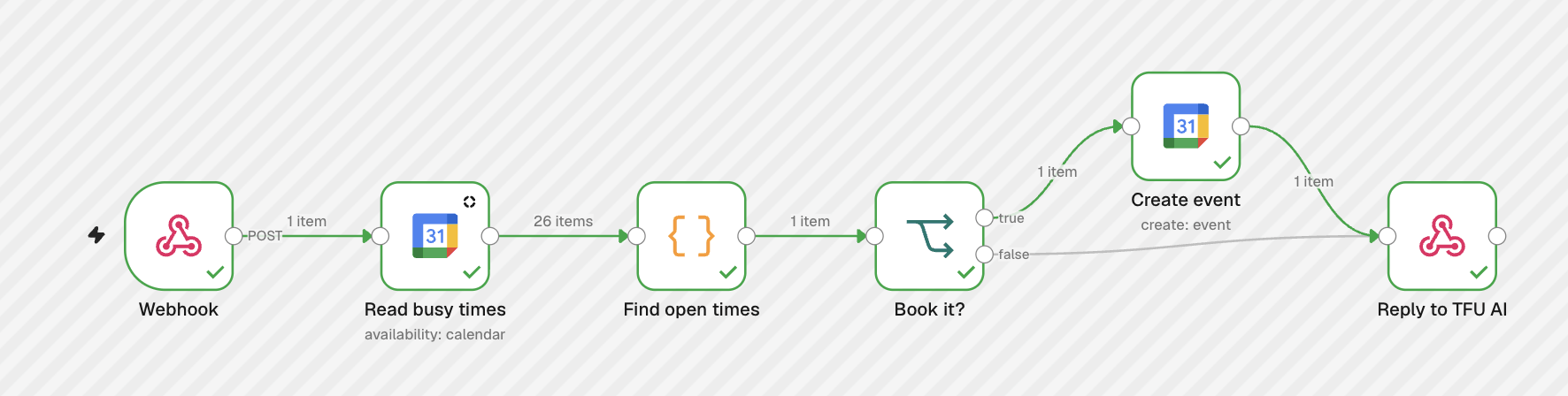
What this setup does not do
- It does not cancel or move a booking. Do that in Google Calendar.
- The event has no guests, so Google sends no invite.
- Two callers who book the same time in the same second can both get it. This is rare. Move one of them in Google Calendar.
Troubleshooting
The agent says it cannot see the diary
The agent says it cannot see the diary
Open Executions in n8n. If nothing ran, check three things. The
workflow is published. TFU AI uses the Production URL. The secret is
the same in TFU AI and in n8n. If a run failed, open it to see the step
that stopped. n8n must answer within 10 seconds.
The agent offers times when you are busy
The agent offers times when you are busy
Read busy times reads one calendar. Choose the calendar you book into,
and choose the same one in Create event.
The times are a few hours off
The times are a few hours off
Set
TIMEZONE in Find open times, then publish again. Google Calendar
may show the event in your own time zone. The time is still right.You moved n8n to a new address
You moved n8n to a new address
Enter the secret again in both Webhook with response steps. TFU AI keeps
a secret only for the address it was saved with.
Next steps
- Workflows: every step you can add.
- Test your agent: the other ways to test.
- TFU Live authoring: build agents over the API.
- How-to guides: more step-by-step guides.