> ## Documentation Index
> Fetch the complete documentation index at: https://docs.teamfollowup.ai/llms.txt
> Use this file to discover all available pages before exploring further.
> ## Agent Instructions
> Use the public API base URL: https://api.teamfollowup.ai/api.
> Authenticate public API requests with Authorization: Bearer YOUR_API_KEY.
> Use product-owned terms: agents, campaigns, projects (GoHighLevel sub-accounts), contacts, calls, outcomes, skills, cadences, phone numbers.
> Scope requests by locationId rather than projectName.
> Read the guide linked from each API reference group before recommending an endpoint.
# Calls and run history
> Inspect what happened using call records, transcripts and campaign execution history.
Call history answers what happened on a call. Campaign run history explains
the surrounding execution. A queue row describes work waiting to happen.
These records answer different questions.
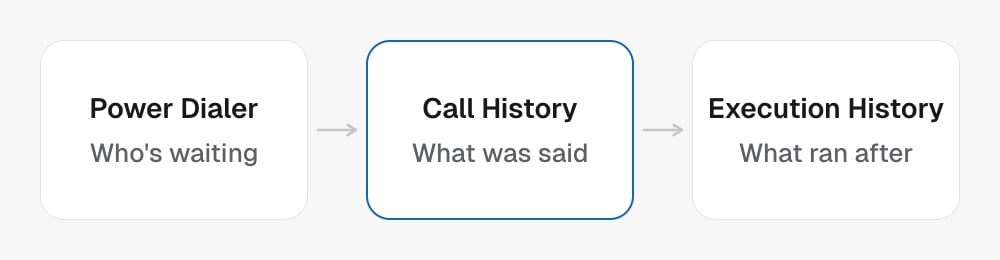
 In the dashboard, calls are on the **Call History** page. Runs are in the
agent's **Campaign** tab, under **Execution History**. Who is waiting is on the
agent's **Power Dialer** tab.
## Find the call
1. Choose the project and time range.
2. Use the available filters to narrow the list.
3. Open the actual call record and inspect the fields returned.
4. Use the transcript, outcome and available recording to support the answer.
Open a call to see its details, transcript and recording when available.
If you cannot find it, check your filters and date range.
## Follow the work around a call
[Campaign run history](/campaigns/run-history) helps trace campaign execution.
[Power Dialer queue state](/campaigns/pipeline) helps explain upcoming or stuck
attempts. Reading either does not place another call.
To place an intentional test, use [Test calls](/campaigns/test-calls). To change
what future calls record, edit [post-call analysis](/agents/outcomes).
## Explain results with their scope
Mention the date range, filters and relevant project when summarizing calls.
A missing result in a filtered or paginated list is not proof that a call never
happened.
## In the API
* [List calls](/api-reference/calls/list-calls) with the project and date filters
* [Get call](/api-reference/calls/get-call) by record `id`, or by the voice platform's `callId` with `idType=call`
* [List campaign runs](/api-reference/campaigns/list-campaign-runs) for the execution log
In the dashboard, calls are on the **Call History** page. Runs are in the
agent's **Campaign** tab, under **Execution History**. Who is waiting is on the
agent's **Power Dialer** tab.
## Find the call
1. Choose the project and time range.
2. Use the available filters to narrow the list.
3. Open the actual call record and inspect the fields returned.
4. Use the transcript, outcome and available recording to support the answer.
Open a call to see its details, transcript and recording when available.
If you cannot find it, check your filters and date range.
## Follow the work around a call
[Campaign run history](/campaigns/run-history) helps trace campaign execution.
[Power Dialer queue state](/campaigns/pipeline) helps explain upcoming or stuck
attempts. Reading either does not place another call.
To place an intentional test, use [Test calls](/campaigns/test-calls). To change
what future calls record, edit [post-call analysis](/agents/outcomes).
## Explain results with their scope
Mention the date range, filters and relevant project when summarizing calls.
A missing result in a filtered or paginated list is not proof that a call never
happened.
## In the API
* [List calls](/api-reference/calls/list-calls) with the project and date filters
* [Get call](/api-reference/calls/get-call) by record `id`, or by the voice platform's `callId` with `idType=call`
* [List campaign runs](/api-reference/campaigns/list-campaign-runs) for the execution log